Carolyn Abram - Facebook For Dummies
Здесь есть возможность читать онлайн «Carolyn Abram - Facebook For Dummies» — ознакомительный отрывок электронной книги совершенно бесплатно, а после прочтения отрывка купить полную версию. В некоторых случаях можно слушать аудио, скачать через торрент в формате fb2 и присутствует краткое содержание. Жанр: unrecognised, на английском языке. Описание произведения, (предисловие) а так же отзывы посетителей доступны на портале библиотеки ЛибКат.

- Название:Facebook For Dummies
- Автор:
- Жанр:
- Год:неизвестен
- ISBN:нет данных
- Рейтинг книги:5 / 5. Голосов: 1
-
Избранное:Добавить в избранное
- Отзывы:
-
Ваша оценка:
Facebook For Dummies: краткое содержание, описание и аннотация
Предлагаем к чтению аннотацию, описание, краткое содержание или предисловие (зависит от того, что написал сам автор книги «Facebook For Dummies»). Если вы не нашли необходимую информацию о книге — напишите в комментариях, мы постараемся отыскать её.
In a chatty, straightforward style, your friendly hosts, Carolyn Abram and Amy Karasavas—both former Facebook employees—help you get settled in with the basics, like setting up your profile and adding content, as well as protecting your privacy when you want to decide who can and can't see your posts. They then show you how to get involved as you add new friends, toggle your newsfeed, shape your timeline story, join groups, and more. They even let you in on ways to go pro and use Facebook for work, such as building a promo page and showing off your business to the world. Once you come out of your virtual shell, there'll be no stopping you!
Build your profile and start adding friends Send private messages and instant notes Share your memories Tell stories about your day Set your privacy and curate your news feed Don't be a wallflower: with this book you have the ideal icebreaker to get the party started so you can join in with all the fun!
Facebook For Dummies — читать онлайн ознакомительный отрывок
Ниже представлен текст книги, разбитый по страницам. Система сохранения места последней прочитанной страницы, позволяет с удобством читать онлайн бесплатно книгу «Facebook For Dummies», без необходимости каждый раз заново искать на чём Вы остановились. Поставьте закладку, и сможете в любой момент перейти на страницу, на которой закончили чтение.
Интервал:
Закладка:
Adding a background
Adding a background color or design is a fun way to add personality to a post. When you add a background color, it also changes the format and font size of your post, emphasizing your words. You can see the difference a background makes to a status update in Figure 4-14.
To add a background, follow these steps after you’ve typed your status:
1 Click the colorful Aa square in the lower-left corner of the share box, below the text you've typed.Background previews appear below your text as a row of squares.
2 Choose a background as follows: If you see a background you want: Click your background choice. To choose from more options: Click the icon with a grid of four squares. In the Choose Background window that appears, scroll and select a background. FIGURE 4-14:Adding a background gives your words a little more pop.
3 Finish typing your post.You can still edit your words or repeat Steps 2 and 3 to choose a different background.
4 When everything is to your liking, click Post.
Adding links
To add content from another website to your post, simply copy and paste the link into the share box. Facebook will automatically generate a preview for the content based on the link. Previews usually include an image, a headline, and a description. Depending on the content you're sharing, you may be able to choose from different thumbnail photos. You can also hover your cursor over the thumbnail image and click the X that appears in the upper-right corner to remove the article preview and share only the link.
Once you get your preview looking the way you want, you can delete the original link (the preview will remain) and use the space above to share your thoughts about your link. When you’re ready to share, click Post.
Adding an emoji
 An emoji is a smiley face icon or other small-sized image that you can insert into your post. To select from a list of emoji, click the grey smiley face icon on the right side of the share box. (The yellow smiley face icon is used to add feeling or activity words to your post.) When you see the emoji you want to add, click it. You can add emoji to text or simply create a post made entirely of emojis, as shown in Figure 4-15.

FIGURE 4-15:Emojis help you express everything you feel.
Adding a photo or video
 Click the green photo/video icon to add a photo to your post. When you click this icon, it opens an interface for navigating your computer’s hard drive to find the photo you want to add.
 Often some of the best photos you want to share on Facebook are on your phone. You can learn how to share photos directly from your smartphone in Chapter 7.
After you select a photo (or photos) you want to add, click Choose or Open. You return to the share box, and you see the photos as they'll appear in your friends’ News Feeds. Hovering the mouse cursor over the photos displays three new buttons. Click the X in the upper-right corner to remove the photos from your post. Select the Edit or Edit All button to crop, rotate, caption, and tag individual photos. Click the Add Photos/Videos button to reopen the interface for selecting photos from your computer. For more information on these options, see Chapter 11.
When you’re happy with the photos you’ve chosen, you can add more text or other information to the post, or simply click Post to share.
Adding a tag
A tag is a way of linking someone or something else to your content on Facebook. Most often, tags are used to let people know who is in a photo, but tags can be used also in status updates to let people know who is with you. People also use tags to bring certain friends’ attention to something they're posting. For example, you might see a status update that says “Who’s up for going hiking? Patrick, Stevie?" Each bolded name links to a friend’s timeline. Additionally, those friends are notified when the post is published.
You can tag someone in your post in two ways. The first is to type the @ symbol (Shift + 2) and begin typing the name of the person you want to tag. Facebook autocompletes as you type. When you see your friend’s name highlighted, press or tap Enter. When you tag someone this way, the tag appears as part of the post, such as “Way better than Moiraat singing.”
 The second way that you can add a tag is by clicking the blue tag friends icon at the bottom of the share box. The Tag Friends window appears. Select your friend from the list that appears or type the person's name in the search box and press Enter when you see it highlighted in the autocomplete list. When you tag people this way, the name is appended to the top of the post: “Get practicing Jazzigals — with Moira.” You can see both types of tags in Figure 4-16.
In addition to people, you can tag Pages. For example, you might want people to know that you're excited about the latest episode of Schitt’s Creek . Type the @ sign and start typing Schitt’s Creek, and you’ll find that it appears in the autocomplete list.
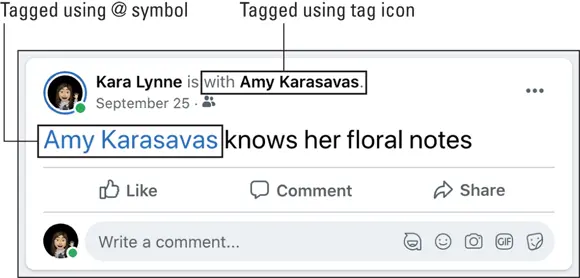
FIGURE 4-16:Tag your friends when they are with you.
Adding what you’re doing or feeling
 Clicking the yellow feeling/activity icon opens the How Are You Feeling? window on top of the share box. Here you can search and browse for choices to explain what you are doing, thinking, or feeling while writing your status update. You may be feeling blessed, or baking cookies, or traveling to the Grand Canyon. The options here are virtually endless.
The information you enter is appended to your post, often with an emoji that further illustrates what you're doing or feeling. Figure 4-17 shows an example of a post with information about what Kara's drinking, with coffee cup emoji to complement her drink of choice. Additionally, if something you're doing has a page or information about it on Facebook, Facebook may add a preview of that information to your post.

FIGURE 4-17:A post with activity information.
You can add only one thing you're doing or feeling to a post, so unfortunately you can't be both feeling joyful and watching Schitt’s Creek at the same time, as far as your posts go.
Checking in with your location information
Интервал:
Закладка:
Похожие книги на «Facebook For Dummies»
Представляем Вашему вниманию похожие книги на «Facebook For Dummies» списком для выбора. Мы отобрали схожую по названию и смыслу литературу в надежде предоставить читателям больше вариантов отыскать новые, интересные, ещё непрочитанные произведения.












Обсуждение, отзывы о книге «Facebook For Dummies» и просто собственные мнения читателей. Оставьте ваши комментарии, напишите, что Вы думаете о произведении, его смысле или главных героях. Укажите что конкретно понравилось, а что нет, и почему Вы так считаете.