Chris Tyler - Fedora Linux
Здесь есть возможность читать онлайн «Chris Tyler - Fedora Linux» весь текст электронной книги совершенно бесплатно (целиком полную версию без сокращений). В некоторых случаях можно слушать аудио, скачать через торрент в формате fb2 и присутствует краткое содержание. Год выпуска: 2006, ISBN: 2006, Издательство: O'Reilly, Жанр: ОС и Сети, на английском языке. Описание произведения, (предисловие) а так же отзывы посетителей доступны на портале библиотеки ЛибКат.
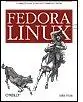
- Название:Fedora Linux
- Автор:
- Издательство:O'Reilly
- Жанр:
- Год:2006
- ISBN:978-0-596-52682-5
- Рейтинг книги:5 / 5. Голосов: 1
-
Избранное:Добавить в избранное
- Отзывы:
-
Ваша оценка:
Fedora Linux: краткое содержание, описание и аннотация
Предлагаем к чтению аннотацию, описание, краткое содержание или предисловие (зависит от того, что написал сам автор книги «Fedora Linux»). Если вы не нашли необходимую информацию о книге — напишите в комментариях, мы постараемся отыскать её.
Fedora Linux: A Complete Guide to Red Hat's Community Distribution In this book, you'll learn how to:
Install Fedora and perform basic administrative tasks
Configure the KDE and GNOME desktops
Get power management working on your notebook computer and hop on a wired or wireless network
Find, install, and update any of the thousands of packages available for Fedora
Perform backups, increase reliability with RAID, and manage your disks with logical volumes
Set up a server with file sharing, DNS, DHCP, email, a Web server, and more
Work with Fedora's security features including SELinux, PAM, and Access Control Lists (ACLs)
Whether you are running the stable version of Fedora Core or bleeding-edge Rawhide releases, this book has something for every level of user. The modular, lab-based approach not only shows you how things work - but also explains why--and provides you with the answers you need to get up and running with Fedora Linux.
Fedora Linux — читать онлайн бесплатно полную книгу (весь текст) целиком
Ниже представлен текст книги, разбитый по страницам. Система сохранения места последней прочитанной страницы, позволяет с удобством читать онлайн бесплатно книгу «Fedora Linux», без необходимости каждый раз заново искать на чём Вы остановились. Поставьте закладку, и сможете в любой момент перейти на страницу, на которой закончили чтение.
Интервал:
Закладка:
Fedora Linux provides a solid desktop computing environmentincluding a graphical user interface, communication tools, and office applicationsthat goes well beyond the traditional definition of an operating system. This chapter focuses on using Fedora in the desktop role.
Where possible, the labs in this book include instructions for performing tasks using both the graphical user interface and the command line. If you are not familiar with entering Linux commands, see Lab 4.1, "Using the Command Line."
2.1. Getting Started Using the Fedora Graphical User Interfaces
Fedora Core provides two attractive and easy-to-use graphical user interfaces (GUIs): KDE and GNOME. Each of these GUIs should be a comfortable adjustment for the majority of Windows and Mac users because basic operations are similar. However, there are some capabilities that are unique to Linux, and learning to use these features will enable you to take full advantage of the Fedora GUIs.
2.1.1. How Do I Do That?
Fedora Linux can boot into graphical mode or text mode, depending on the default runlevel (see Lab 4.5, "Using Runlevels"); when installed using the graphical installation program, Fedora's default is to present the graphical login display shown in Figure 2-1 .
Figure 2-1. Fedora default login screen
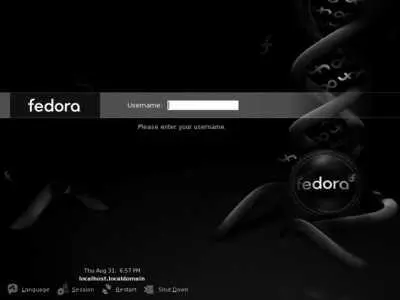
In the middle of the screen are four clickable controls:
Language
Displays a dialog enabling you to select the default language for the session. This will not change the messages on the login display, but it will change the default for messages after you successfully log in. Where possible, messages will appear in this selected language, but when no translation for the selected language is found, messages will appear in the default language for the application (usually English). After you enter a username and password, you will be given the choice of making the selected language the permanent default for that username, or using it only for one session.
Session
Permits you to select the session type: GNOME (the default) or a fail-safe session. If you install additional software for other desktop environments, such as KDE or Xfce, they will also appear on this menu.
Restart
Presents a confirmation dialog, then restarts the computer. Except for the kernel (the core of the operating system), almost everything in Fedora can be restarted without a reboot, so this option is usually used only when switching between operating systems in a dual-boot configuration.
Shut Down
Presents a confirmation dialog, then shuts down the system and turns the computer off.
If you press F10, a menu containing most of these options appears.
After you enter your username and password, the system will check to see if you have selected a session type or language different from your normal settings. If so, you will be asked if the change is temporary ("Just for This Session") or permanent ("Make default"). Click on one of the buttons to make your selection.
2.1.1.1. KDE or GNOME?
GNOME and KDE are built upon different technology and have been designed with different philosophiesas a GNOME or KDE advocate will quickly tell you. However, the most common operations are the same in both environments, and the GNOME and KDE communities collaborate on a number of key issues through freedesktop.org ( http://freedesktop.org ). The friendly rivalry between the groups spurs them on to develop innovations and refinements for both desktop environments.
Fedora installs and uses GNOME by default, and it is the best choice for most Fedora users. However, KDE is provided on the installation CDs/DVD, and it's worthwhile experimenting with both desktops to find the one that suits your style.
Regardless of which GUI environment you use, you can run both KDE and GNOME programs and have them side by side on your display. For example, you can fire up Evolution (the GNOME email/calendar/ scheduling application) and Konqueror (the KDE web browser) and cut and paste data between them. This interoperability is enabled by the X Window System, which provides the foundation for both GUIs.
2.1.1.2. Using the desktop
Once you have logged in, you will see the GNOME desktop, shown in Figure 2-2 , or the KDE desktop, shown in Figure 2-3 . The same default visual theme has been installed in both environments to provide a fairly consistent appearance and style.
Figure 2-2. Fedora GNOME desktop.
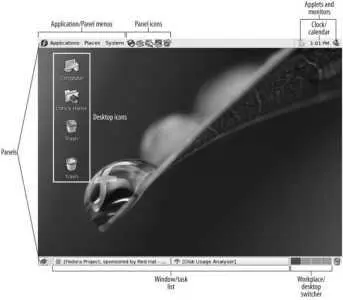
Figure 2-3. Fedora KDE desktop

Although the two desktop environments have some significant differences, their main features are very similar. Here is a summary; where KDE and GNOME differ in their naming conventions, I've used a unified terminology (which will mortify GNOME or KDE purists but allow the rest of us to talk about the desktop in a sane way):
Panel bar (panel)
Fedora's default configuration of the GNOME desktop includes two panel bars, one at the top of the screen and one at the bottom. Fedora's KDE configuration includes one panel bar at the bottom of the screen. In both cases, you can move the panels to any edge of the screen by clicking on them (in an empty area of the panel) and dragging them. You can move an item within a panel by clicking on it with the middle mouse button (on a mouse with a wheel, depress the wheel; on a two-button mouse, press both buttons simultaneously) and dragging it to the desired location. To shove other items along while dragging an item, hold down the Shift key.
You can lock an item to a specific location within the panel by right-clicking and selecting the checkbox labeled "Lock to panel"; to unlock the item, deselect the checkbox.
Application/panel menus
GNOME's application menus appear on the left side of the top panel bar. Three menus are provided: Applications, which contains various useful programs; Places, which contains a list of location-oriented options, such as viewing your home directory or desktop, searching for files, or going to a recently edited document; and System, which includes preferences, administration, help, and options to log out or lock the display.
KDE's main panel menu is called the K menu (it's customized to look like an F in Fedora) and is located at the left side of the panel bar. It includes roughly the same applications as the GNOME menus, with some KDE programs replacing GNOME programs (such as the KDE Control Center instead of the GNOME Preference options).
Both environments permit you to access the application menu by pressing Alt-F1.
Panel icons
Common applications have icons on the panel bar. To add an icon for another program to the panel, find the program on the application menu, then right-click and select "Add this Launcher to Panel" or "Add Item to Main Panel."
Desktop icons
A default set of icons appears on the desktop, including your Home directory, Computer, and Trash. You can create additional icons by dragging files from a file manager or links from a web browser and dropping them on the desktop. Desktop icons are stored in the directory named ~/Desktop .
Workplace/desktop switcher
Both GNOME and KDE include virtual desktop (or workspace ) capability, which means that the visible screen represents only one of several desktop workspaces. To switch between desktops, click on one of the desktop icons in the desktop switcher, or place your mouse pointer over the desktop switcher and roll the mouse wheel. GNOME's workplace switcher also allows you to drag a window outline from one desktop to another. GNOME's workspaces are initially arranged in a horizontal row, while KDE's are arranged in a 2×2 grid.
Читать дальшеИнтервал:
Закладка:
Похожие книги на «Fedora Linux»
Представляем Вашему вниманию похожие книги на «Fedora Linux» списком для выбора. Мы отобрали схожую по названию и смыслу литературу в надежде предоставить читателям больше вариантов отыскать новые, интересные, ещё непрочитанные произведения.










Обсуждение, отзывы о книге «Fedora Linux» и просто собственные мнения читателей. Оставьте ваши комментарии, напишите, что Вы думаете о произведении, его смысле или главных героях. Укажите что конкретно понравилось, а что нет, и почему Вы так считаете.