Michael Alexander - Excel 2019 Power Programming with VBA
Здесь есть возможность читать онлайн «Michael Alexander - Excel 2019 Power Programming with VBA» — ознакомительный отрывок электронной книги совершенно бесплатно, а после прочтения отрывка купить полную версию. В некоторых случаях можно слушать аудио, скачать через торрент в формате fb2 и присутствует краткое содержание. Жанр: unrecognised, на английском языке. Описание произведения, (предисловие) а так же отзывы посетителей доступны на портале библиотеки ЛибКат.
- Название:Excel 2019 Power Programming with VBA
- Автор:
- Жанр:
- Год:неизвестен
- ISBN:нет данных
- Рейтинг книги:4 / 5. Голосов: 1
-
Избранное:Добавить в избранное
- Отзывы:
-
Ваша оценка:
Excel 2019 Power Programming with VBA: краткое содержание, описание и аннотация
Предлагаем к чтению аннотацию, описание, краткое содержание или предисловие (зависит от того, что написал сам автор книги «Excel 2019 Power Programming with VBA»). Если вы не нашли необходимую информацию о книге — напишите в комментариях, мы постараемся отыскать её.
Excel 2019 Power Programming with VBA Understanding how to leverage VBA to improve your Excel programming skills can enhance the quality of deliverables that you produce—and can help you take your career to the next level.
Explore fully updated content that offers comprehensive coverage through over 900 pages of tips, tricks, and techniques Leverage templates and worksheets that put your new knowledge in action, and reinforce the skills introduced in the text Improve your capabilities regarding Excel programming with VBA, unlocking more of your potential in the office
is a fundamental resource for intermediate to advanced users who want to polish their skills regarding spreadsheet applications using VBA.
Excel 2019 Power Programming with VBA — читать онлайн ознакомительный отрывок
Ниже представлен текст книги, разбитый по страницам. Система сохранения места последней прочитанной страницы, позволяет с удобством читать онлайн бесплатно книгу «Excel 2019 Power Programming with VBA», без необходимости каждый раз заново искать на чём Вы остановились. Поставьте закладку, и сможете в любой момент перейти на страницу, на которой закончили чтение.
Интервал:
Закладка:
FIGURE 2.11 This Project window lists two projects. They are expanded to show their objects.
Every project expands to show at least one node called Microsoft Excel Objects. This node expands to show an item for each sheet in the workbook (each sheet is considered an object), and another object called ThisWorkbook (which represents the Workbook object). If the project has any VBA modules, the project listing also shows a Modules node.
Adding a new VBA module
When you record a macro, Excel automatically inserts a VBA module to hold the recorded code. The workbook that holds the module for the recorded macro depends on where you chose to store the recorded macro, just before you started recording.
In general, a VBA module can hold three types of code.
Declarations One or more information statements that you provide to VBA. For example, you can declare the data type for variables you plan to use or set some other module-wide options.
Sub procedures A set of programming instructions that performs some action. All recorded macros will be Sub procedures.
Function procedures A set of programming instructions that returns a single value (similar in concept to a worksheet function, such as Sum).
A single VBA module can store any number of Subprocedures, Functionprocedures, and declarations. How you organize a VBA module is completely up to you. Some people prefer to keep all of their VBA code for an application in a single VBA module; others like to split up the code into several different modules. It's a personal choice, just like arranging furniture.
Follow these steps to add a new VBA module manually to a project:
1 Select the project's name in the Project window.
2 Choose Insert ➪ Module.
Or you can do the following:
1 Right-click the project's name.
2 Choose Insert ➪ Module from the shortcut menu.
The new module is added to a Modulesfolder in the Project window (see Figure 2.12). Any module that you create in a given workbook is placed in this Modulesfolder.
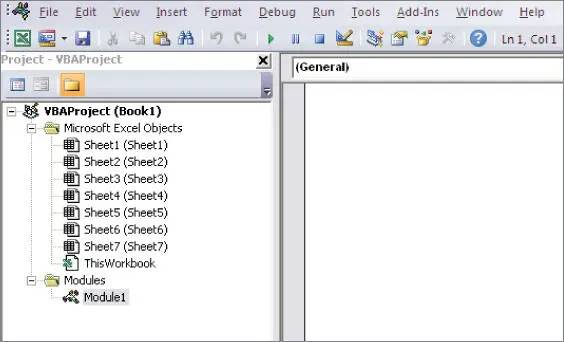
FIGURE 2.12 Code modules are visible in the Project window in a folder called Modules.
Removing a VBA module
You may want to remove a code module that is no longer needed. To do so, follow these steps:
1 Select the module's name in the Project window.
2 Choose File ➪ Remove xxx, where xxx is the module name. Note that Excel will ask if you want to export the module before removing it. You can click Yes if you want to save the module for backup purposes or for importing into another workbook.
Or you can do the following:
1 Right-click the module's name in the Project window.
2 Choose Remove xxx from the shortcut menu.
NOTE
You can remove VBA modules, but there is no way to remove the other code modules such as those for the Sheet objects or for This Workbook.
Working with a Code window
As you become proficient with VBA, you spend lots of time working in Code windows. Macros that you record are stored in a module, and you can type VBA code directly into a VBA module.
Minimizing and maximizing windows
Code windows are much like workbook windows in Excel. You can minimize them, maximize them, resize them, hide them, rearrange them, and so on. Most people find it much easier to maximize the Code window on which they're working. Doing so lets you see more code and keeps you from getting distracted.
To maximize a Code window, click the maximize button in its title bar (right next to the X). Or, just double-click its title bar to maximize it. To restore a Code window to its original size, click the Restore button. When a window is maximized, its title bar isn't really visible, so you'll find the Restore button to the right of the Type a Question for Help box.
Sometimes, you may want to have two or more Code windows visible. For example, you may want to compare the code in two modules or copy code from one module to another. You can arrange the windows manually or use the Window ➪ Tile Horizontally or Window ➪ Tile Vertically command to arrange them automatically.
You can quickly switch among Code windows by pressing Ctrl+Tab. If you repeat that key combination, you keep cycling through all the open Code windows. Pressing Ctrl+Shift+Tab cycles through the windows in reverse order.
Minimizing a Code window gets it out of the way. You can also click the window's Close button in a Code window's title bar to close the window completely. (Closing a window just hides it; you won't lose anything.) To open it again, just double-click the appropriate object in the Project window. Working with these Code windows sounds more difficult than it really is.
Getting VBA code into a module
Before you can do anything meaningful, you must have some VBA code in the VBA module. You can get VBA code into a VBA module in three ways.
Use the Excel macro recorder to record your actions and convert them to VBA code.
Enter the code directly.
Copy the code from one module and paste it into another.
You have discovered the excellent method for creating code by using the Excel Macro recorder. However, not all tasks can be translated to VBA by recording a macro. You often have to enter your code directly into the module. Entering code directly basically means either typing the code yourself or copying and pasting code you have found from somewhere else.
Entering and editing text in a VBA module works as you might expect. You can select, copy, cut, paste, and do other things to the text.
A single line of VBA code can be as long as you like. However, you may want to use the line-continuation character to break up lengthy lines of code. To continue a single line of code (also known as a statement ) from one line to the next, end the first line with a space followed by an underscore ( _). Then continue the statement on the next line. Here's an example of a single statement split into three lines:
Selection.Sort Key1:=Range("A1"), _ Order1:=xlAscending, Header:=xlGuess, _ Orientation:=xlTopToBottom
This statement would perform exactly the same way if it were entered in a single line (with no line-continuation characters). Notice that the second and third lines of this statement are indented. Indenting is optional, but it helps clarify the fact that these lines are not separate statements.
The VBE has multiple levels of undo and redo. If you deleted a statement that you shouldn't have, use the Undo button on the toolbar (or press Ctrl+Z) until the statement appears again. After undoing, you can use the Redo button to perform the changes you've undone.
Are you ready to enter some real, live code? Try the following steps:
1 Create a new workbook in Excel.
2 Press Alt+F11 to activate the VBE.
3 Click the new workbook's name in the Project window.
4 Choose Insert ➪ Module to insert a VBA module into the project.
5 Type the following code into the module: Sub GuessName() Dim Msg as String Dim Ans As Long Msg = "Is your name " & Application.UserName & "?" Ans = MsgBox(Msg, vbYesNo) If Ans = vbNo Then MsgBox "Oh, never mind." If Ans = vbYes Then MsgBox "I must be clairvoyant!" End Sub
6 Make sure that the cursor is located anywhere within the text you typed, and press F5 to execute the procedure.
TIP
F5 is a shortcut for the Run ➪ Run Sub/UserForm command.
Читать дальшеИнтервал:
Закладка:
Похожие книги на «Excel 2019 Power Programming with VBA»
Представляем Вашему вниманию похожие книги на «Excel 2019 Power Programming with VBA» списком для выбора. Мы отобрали схожую по названию и смыслу литературу в надежде предоставить читателям больше вариантов отыскать новые, интересные, ещё непрочитанные произведения.










Обсуждение, отзывы о книге «Excel 2019 Power Programming with VBA» и просто собственные мнения читателей. Оставьте ваши комментарии, напишите, что Вы думаете о произведении, его смысле или главных героях. Укажите что конкретно понравилось, а что нет, и почему Вы так считаете.