Chris Tyler - Fedora Linux
Здесь есть возможность читать онлайн «Chris Tyler - Fedora Linux» весь текст электронной книги совершенно бесплатно (целиком полную версию без сокращений). В некоторых случаях можно слушать аудио, скачать через торрент в формате fb2 и присутствует краткое содержание. Год выпуска: 2006, ISBN: 2006, Издательство: O'Reilly, Жанр: ОС и Сети, на английском языке. Описание произведения, (предисловие) а так же отзывы посетителей доступны на портале библиотеки ЛибКат.
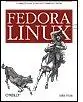
- Название:Fedora Linux
- Автор:
- Издательство:O'Reilly
- Жанр:
- Год:2006
- ISBN:978-0-596-52682-5
- Рейтинг книги:5 / 5. Голосов: 1
-
Избранное:Добавить в избранное
- Отзывы:
-
Ваша оценка:
Fedora Linux: краткое содержание, описание и аннотация
Предлагаем к чтению аннотацию, описание, краткое содержание или предисловие (зависит от того, что написал сам автор книги «Fedora Linux»). Если вы не нашли необходимую информацию о книге — напишите в комментариях, мы постараемся отыскать её.
Fedora Linux: A Complete Guide to Red Hat's Community Distribution In this book, you'll learn how to:
Install Fedora and perform basic administrative tasks
Configure the KDE and GNOME desktops
Get power management working on your notebook computer and hop on a wired or wireless network
Find, install, and update any of the thousands of packages available for Fedora
Perform backups, increase reliability with RAID, and manage your disks with logical volumes
Set up a server with file sharing, DNS, DHCP, email, a Web server, and more
Work with Fedora's security features including SELinux, PAM, and Access Control Lists (ACLs)
Whether you are running the stable version of Fedora Core or bleeding-edge Rawhide releases, this book has something for every level of user. The modular, lab-based approach not only shows you how things work - but also explains why--and provides you with the answers you need to get up and running with Fedora Linux.
Fedora Linux — читать онлайн бесплатно полную книгу (весь текст) целиком
Ниже представлен текст книги, разбитый по страницам. Система сохранения места последней прочитанной страницы, позволяет с удобством читать онлайн бесплатно книгу «Fedora Linux», без необходимости каждый раз заново искать на чём Вы остановились. Поставьте закладку, и сможете в любой момент перейти на страницу, на которой закончили чтение.
Интервал:
Закладка:
6.1.1.3.2. Getting information about LVM elements
To discover the VGs present on your system, use the vgs command:
# vgs
VG #PV #LV #SN Attr VSize VFree
main 2 4 0 wz--n- 20.04G 7.78G
This shows the volume group name, the number of physical volumes, logical volumes, and snapshots; attributes (see the manpage for lvm for details); the volume group size; and the amount of space that is not assigned to a logical volume.
vgdisplay shows the same information as vgs but in a more verbose form:
# vgdisplay
--- Volume group ---
VG Name main
System ID
Format lvm2
Metadata Areas 2
Metadata Sequence No 51
VG Access read/write
VG Status resizable
MAX LV 0
Cur LV 4
Open LV 4
Max PV 0
Cur PV 2
Act PV 2
VG Size 20.04 GB
PE Size 4.00 MB
Total PE 5131
Alloc PE / Size 3140 / 12.27 GB
Free PE / Size 1991 / 7.78 GB
VG UUID 13X0pY-5Vnq-3KlU-7Qlu-sHUc-wrup-zsHipP
The VG UUID at the bottom is a unique ID number placed in the disk label of each PV to identify that it is part of this volume group.
If you have more than one VG present and only want to see information about a specific one, you can specify a volume group name as an argument to vgdisplay or vgs .
To list the PVs present, use pvs or pvdisplay :
# pvs
PV VG Fmt Attr PSize PFree
/dev/hdc3 main lvm2 a- 20.04G 7.77G
/dev/sdb1 main lvm2 a- 4.00M 4.00M
# pvdisplay
--- Physical volume ---
PV Name /dev/hdc3
VG Name main
PV Size 20.04 GB / not usable 0
Allocatable yes
PE Size (KByte) 4096
Total PE 5130
Free PE 1990
Allocated PE 3140
PV UUID RL2wrh-WMgl-pyaR-bHt4-6dCv-23Fd-kX1gvT
--- Physical volume ---
PV Name /dev/sdb1
VG Name main
PV Size 4.00 MB / not usable 0
Allocatable yes
PE Size (KByte) 4096
Total PE 1
Free PE 1
Allocated PE 0
PV UUID HvryBh-kGrM-c10y-yw1v-u8W3-r2LN-5LrLrJ
In this case, there are two PVs present: /dev/hdc3 (an IDE hard disk partition) and /dev/sdb1 (a USB disk I was playing with). Both are part of the VG main . The display shows the attributes (see man lvm ), size, and amount of unallocated space.
In a similar way, you can see logical volume information with lvs or lvdisplay :
# lvs
LV VG Attr LSize Origin Snap% Move Log Copy%
home main -wi-ao 1.00G
multimedia main owi-ao 512.00M
multimedia-snap main swi-a- 128.00M multimedia 0.02
root main -wi-ao 9.77G
swap main -wi-ao 1.00G
# lvdisplay
--- Logical volume ---
LV Name /dev/main/root
VG Name main
LV UUID LaQgYA-jiBr-G02i-y64m-90fT-viBp-TuZ9sC
LV Write Access read/write
LV Status available
# open 1
LV Size 9.77 GB
Current LE 2500
Segments 1
Allocation inherit
Read ahead sectors 0
Block device 253:0
...(Lines snipped)...
--- Logical volume ---
LV Name /dev/main/multimedia
VG Name main
LV UUID f7zJvh-H21e-fSn7-llq3-Ryu1-p1FQ-PTAoNC
LV Write Access read/write
LV snapshot status source of
/dev/main/multimedia-snap [active]
LV Status available
# open 1
LV Size 512.00 MB
Current LE 128
Segments 1
Allocation inherit
Read ahead sectors 0
Block device 253:3
--- Logical volume ---
LV Name /dev/main/multimedia-snap
VG Name main
LV UUID 7U5wVQ-qIWU-7bcz-J4vT-zAPh-xGVN-CDNfjx
LV Write Access read/write
LV snapshot status active destination for /dev/main/multimedia
LV Status available
# open 0
LV Size 512.00 MB
Current LE 128
COW-table size 128.00 MB
COW-table LE 32
Allocated to snapshot 0.02%
Snapshot chunk size 8.00 KB
Segments 1
Allocation inherit
Read ahead sectors 0
Block device 253:6
This display shows the volume group, attributes (again, see man lvm ), and logical volume size. Additional information is shown for snapshot volumes and LVs that are being copied or moved between PVs. The Block device shown in the lvdisplay output is the major and minor device number.
6.1.1.3.3. Growing a logical volume
To increase the size of a logical volume, use the lvextend command:
# lvextend /dev/main/multimedia --size 1G
Extending logical volume multimedia to 1.00 GB
Logical volume multimedia successfully resized
Specify the LV device as the first argument, and use the --size option to specify the new size for the volume. Use a numeric size with one of the size suffixes from Table 6-2 as the value for the --size option.
Table 6-2. Size suffixes used by LVM
| Suffix | Name | Size | Approximation |
|---|---|---|---|
| k, K | Kibibyte (kilobyte) | 2 10= 1,024 bytes | Thousand bytes |
| m, M | Mebibyte (megabyte) | 2 20= 1,048,576 bytes | Million bytes |
| g, G | Gibibyte (gigabyte) | 2 30= 1,073,741,824 bytes | Billion bytes |
| t, T | Tebibyte (terabyte) | 2 40= 1,099,511,627,776 bytes | Trillion bytes |
Once you have resized the LV, resize the filesystem contained inside:
#
resize2fs /dev/main/multimedia
resize2fs 1.39 (29-May-2006)
Resizing the filesystem on /dev/main/multimedia to 1048576 (1k) blocks.
The filesystem on /dev/main/multimedia is now 1048576 blocks long.
Note that you do not need to specify the filesystem size; the entire LV size will be used.
If the resize2fs fails with the message No space left on device, the new size is too large for the existing allocation tables
6.1.1.3.4. Shrinking a logical volume
Before reducing the size of a logical volume, you must first reduce the size of the filesystem inside the LV. This must be done when the filesystem is unmounted:
Читать дальшеИнтервал:
Закладка:
Похожие книги на «Fedora Linux»
Представляем Вашему вниманию похожие книги на «Fedora Linux» списком для выбора. Мы отобрали схожую по названию и смыслу литературу в надежде предоставить читателям больше вариантов отыскать новые, интересные, ещё непрочитанные произведения.










Обсуждение, отзывы о книге «Fedora Linux» и просто собственные мнения читателей. Оставьте ваши комментарии, напишите, что Вы думаете о произведении, его смысле или главных героях. Укажите что конкретно понравилось, а что нет, и почему Вы так считаете.