Chris Tyler - Fedora Linux
Здесь есть возможность читать онлайн «Chris Tyler - Fedora Linux» весь текст электронной книги совершенно бесплатно (целиком полную версию без сокращений). В некоторых случаях можно слушать аудио, скачать через торрент в формате fb2 и присутствует краткое содержание. Год выпуска: 2006, ISBN: 2006, Издательство: O'Reilly, Жанр: ОС и Сети, на английском языке. Описание произведения, (предисловие) а так же отзывы посетителей доступны на портале библиотеки ЛибКат.
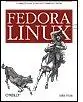
- Название:Fedora Linux
- Автор:
- Издательство:O'Reilly
- Жанр:
- Год:2006
- ISBN:978-0-596-52682-5
- Рейтинг книги:5 / 5. Голосов: 1
-
Избранное:Добавить в избранное
- Отзывы:
-
Ваша оценка:
Fedora Linux: краткое содержание, описание и аннотация
Предлагаем к чтению аннотацию, описание, краткое содержание или предисловие (зависит от того, что написал сам автор книги «Fedora Linux»). Если вы не нашли необходимую информацию о книге — напишите в комментариях, мы постараемся отыскать её.
Fedora Linux: A Complete Guide to Red Hat's Community Distribution In this book, you'll learn how to:
Install Fedora and perform basic administrative tasks
Configure the KDE and GNOME desktops
Get power management working on your notebook computer and hop on a wired or wireless network
Find, install, and update any of the thousands of packages available for Fedora
Perform backups, increase reliability with RAID, and manage your disks with logical volumes
Set up a server with file sharing, DNS, DHCP, email, a Web server, and more
Work with Fedora's security features including SELinux, PAM, and Access Control Lists (ACLs)
Whether you are running the stable version of Fedora Core or bleeding-edge Rawhide releases, this book has something for every level of user. The modular, lab-based approach not only shows you how things work - but also explains why--and provides you with the answers you need to get up and running with Fedora Linux.
Fedora Linux — читать онлайн бесплатно полную книгу (весь текст) целиком
Ниже представлен текст книги, разбитый по страницам. Система сохранения места последней прочитанной страницы, позволяет с удобством читать онлайн бесплатно книгу «Fedora Linux», без необходимости каждый раз заново искать на чём Вы остановились. Поставьте закладку, и сможете в любой момент перейти на страницу, на которой закончили чтение.
Интервал:
Закладка:
To change to the /tmp directory:
$ cd /tmp
To change to the foo directory within the current directory:
$ cd foo
To change back to the directory you were in before the last cd command:
$ cd -
To change to your home directory:
$ cd
To change to the book directory within your home directory, regardless of the current working directory:
$ cd ~/book
To change to jason 's home directory:
$ cd ~ jason/
4.3.1.7. Creating and removing directories from the command line
To create a directory from the command line, use the mkdir command:
$ mkdir newdirectory
This will create newdirectory in the current working directory. You could also specify the directory name using an absolute or relative-to-home pathname.
To create a chain of directories, or a directory when one or more of the parent directories might not exist, use the -p (path) option:
$ mkdir -p foo/bar/baz/qux
This has the side effect of turning off any warning messages if the directory already exists.
To delete a directory that is empty, use rmdir :
$ rmdir newdirectory
This will fail if the directory is not empty. To delete a directory as well as all of the directories and files within that directory, use the rm (remove) command with the -r (recursive) option:
$ rm -r newdirectory
rm -r can delete hundreds or thousands of files without further confirmation. Use it carefully!
4.3.1.8. Copying files
To copy a file, use the cp command with the source and destination filenames as positional arguments:
$ cp /etc/passwd /tmp/passwd-copy
This will make a copy of /etc/passwd named /tmp/passwd-copy . You can copy multiple files with a single cp command as long as the destination is a directory; for example, to copy /etc/passwd to /tmp/passwd and /etc/hosts to /tmp/hosts :
$ cp /etc/passwd /etc/hosts /tmp
4.3.1.9. Renaming and moving files
In Linux, renaming and moving files are considered the same operation and are performed with the mv command. In either cases, you're changing the pathname under which the file is stored without changing the contents of the file.
To change a file named yellow to be named purple in the current directory:
$ mv yellow purple
To move the file orange from jason 's home directory to your own:
$ mv ~jason/orange ~
4.3.1.10. Removing files
The rm command will remove (delete) a file:
$ rm badfile
You will not be prompted for confirmation as long as you are the owner of the file. To disable confirmation in all cases, use -f (force):
$ rm -f badfile
Or to enable confirmation in all cases, use -i (interactive):
$ rm -i badfile
rm: remove regular empty file \Q
badfile
'?
y
-f and -i can also be used with cp and mv .
The graphical desktop tools don't directly delete files; they relocate them to a hidden directory named ~/.Trash , which corresponds to the desktop Trash icon, where they stay until the Empty Trash option is chosen. You can do the same thing from the command line:
$ mv badfile ~/.Trash
4.3.1.11. Creating multiple names by linking files
Linux systems store files by number (the inode number ). You can view the inode number of a file by using the -i option to ls :
$ ls -i /etc/hosts
3410634 /etc/hosts
A filename is cross-referenced to the corresponding inode number by a link and there's no reason why several links can't point to the same inode number, resulting in a file with multiple names.
This is useful in several situations. For example, the links can appear in different directories, giving convenient access to one file from two parts of the filesystem, or a file can be given a long and detailed name as well as a short name to reduce typing.
Links are created using the ln command. The first argument is an existing filename (source), and the last argument is the filename to be created (destination), just like the cp and mv commands. If multiple source filenames are given, the destination must be a directory.
For example, to create a link to /etc/passwd named ~/passwords , type:
$ ln /etc/passwd ~/passwords
The second column in the output from ls -l displays the number of links on a file:
$ ls -l electric.mp3
-rw-rw-r-- 1 chris chris 23871 Oct 13 01:00 electric.mp3
$ rm zap.mp3
$ ln electric.mp3 zap.mp3
$ ls -l electric.mp3
-rw-rw-r-- 2 chris chris 23871 Oct 13 01:00 electric.mp3
Although these types of links, called hard links , are very useful, they suffer from three main limitations:
The target (file being linked to) must exist before the link is created.
The link must be on the same storage device as the target.
You cannot link to directories.
The alternative to a hard link is a symbolic link , which links one filename to another filename instead of linking a filename to an inode number. This provides a work-around for all three of the limitations of hard links.
The ln command creates symbolic links when the -s argument is specified:
$ ls -l ants.avi
-rw-rw-r-- 1 chris chris 1539071 Oct 13 01:06 ants.avi
$ ln -s ants.avi ants_in_ant_farm.avi
$ ls -l *ants*
-rw-rw-r-- 1 chris chris 1539071 Oct 13 01:06 ants.avi
lrwxrwxrwx 1 chris chris 8 Oct 13 01:06 ants_in_ant_farm.avi -> ants.avi
Notice that the the link count on the the target does not increase when a symbolic link is created, and that the ls -l output clearly shows the target of the link.
4.3.1.12. Determining the contents of files
The file command will read the first part of a file, analyze it, and display information about the type of data in the file. Supply one or more filenames as the argument:
Читать дальшеИнтервал:
Закладка:
Похожие книги на «Fedora Linux»
Представляем Вашему вниманию похожие книги на «Fedora Linux» списком для выбора. Мы отобрали схожую по названию и смыслу литературу в надежде предоставить читателям больше вариантов отыскать новые, интересные, ещё непрочитанные произведения.









Обсуждение, отзывы о книге «Fedora Linux» и просто собственные мнения читателей. Оставьте ваши комментарии, напишите, что Вы думаете о произведении, его смысле или главных героях. Укажите что конкретно понравилось, а что нет, и почему Вы так считаете.