Chris Tyler - Fedora Linux
Здесь есть возможность читать онлайн «Chris Tyler - Fedora Linux» весь текст электронной книги совершенно бесплатно (целиком полную версию без сокращений). В некоторых случаях можно слушать аудио, скачать через торрент в формате fb2 и присутствует краткое содержание. Год выпуска: 2006, ISBN: 2006, Издательство: O'Reilly, Жанр: ОС и Сети, на английском языке. Описание произведения, (предисловие) а так же отзывы посетителей доступны на портале библиотеки ЛибКат.
- Название:Fedora Linux
- Автор:
- Издательство:O'Reilly
- Жанр:
- Год:2006
- ISBN:978-0-596-52682-5
- Рейтинг книги:5 / 5. Голосов: 1
-
Избранное:Добавить в избранное
- Отзывы:
-
Ваша оценка:
Fedora Linux: краткое содержание, описание и аннотация
Предлагаем к чтению аннотацию, описание, краткое содержание или предисловие (зависит от того, что написал сам автор книги «Fedora Linux»). Если вы не нашли необходимую информацию о книге — напишите в комментариях, мы постараемся отыскать её.
Fedora Linux: A Complete Guide to Red Hat's Community Distribution In this book, you'll learn how to:
Install Fedora and perform basic administrative tasks
Configure the KDE and GNOME desktops
Get power management working on your notebook computer and hop on a wired or wireless network
Find, install, and update any of the thousands of packages available for Fedora
Perform backups, increase reliability with RAID, and manage your disks with logical volumes
Set up a server with file sharing, DNS, DHCP, email, a Web server, and more
Work with Fedora's security features including SELinux, PAM, and Access Control Lists (ACLs)
Whether you are running the stable version of Fedora Core or bleeding-edge Rawhide releases, this book has something for every level of user. The modular, lab-based approach not only shows you how things work - but also explains why--and provides you with the answers you need to get up and running with Fedora Linux.
Fedora Linux — читать онлайн бесплатно полную книгу (весь текст) целиком
Ниже представлен текст книги, разбитый по страницам. Система сохранения места последней прочитанной страницы, позволяет с удобством читать онлайн бесплатно книгу «Fedora Linux», без необходимости каждый раз заново искать на чём Вы остановились. Поставьте закладку, и сможете в любой момент перейти на страницу, на которой закончили чтение.
Интервал:
Закладка:
The phrase online documentation refers to both local and Internet-based electronic documentation.
4.2.1. How Do I Do That?
There are five main types of documentation available:
Manpages
info pages
The GNOME Guides and KDE Manuals
HOWTOs and guides from the Linux Documentation Project
Text files distributed with applications
4.2.1.1. Using manpages
Fedora continues the Unix tradition of providing an online version of what were originally loose-leaf printed manuals. These manuals cover the commands, programming interfaces, and data formats used by the system.
The command used to access these online manuals is called man , so these documents have come to be known as manpages . The majority of Fedora documentation is in this format.
The pages are arranged into sections according to the original binders, using the section numbers described in Table 4-2 . The section numbers are used to distinguish different manpages with the same name, such as the manpage for the uname system call (found in section 2) and the uname command (found in section 1). In some cases, a letter or two may be appended to a section number to indicate a subsection (such as 3pm , the manual section containing Perl module library functions).
A system call is a request made of the operating system by an application program.
Table 4-2. Section numbers for manpages
| Section | Description |
|---|---|
| 1 | User commands |
| 2 | System calls |
| 3 | Library functions |
| 4 | Special files |
| 5 | File formats |
| 6 | Games |
| 7 | Conventions and miscellany |
| 8 | Administration and privileged commands |
To view the manpage for a particular command, such as ls :
$ man ls
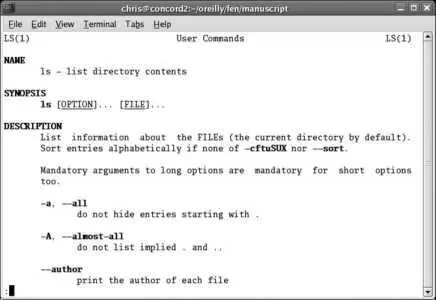
The output will appear as shown in Figure 4-1 . You can use the up and down arrow keys and the Page Up/Page Down keys to scroll through the text, or q to quit. You can also type / , enter some text, and press Enter to search for that text within the document; type n (lowercase n , for next ) to search again. ? and N (uppercase N ) can be used in the same way to search backwards.
Figure 4-1. Online display of a manpage
To request a manpage from a specific section of the manual, give the section as the first argument and the name of the manpage as the second argument:
$ man 2 uname
If you don't specify the section, the first section containing a page with the requested name is usedand since there is a uname page in section 1, you won't see the page from section 2 unless you specifically ask for it.
4.2.1.2. Finding a manpage
The -k argument of man is used to produce a list of all of the pages that contain a specific keyword in their short descriptions. For example, if you wanted to see all of the manpages that contained the word calendar in their summary:
$ man -k calendar
Date::Calc (3pm) - Gregorian calendar date calculations
Date::Calendar (3pm) - Calendar objects for different holiday schemes
Date::Calendar::Profiles (3pm) - Some sample profiles for Date::Calendar and
Date::Calendar::Year
Date::Calendar::Year (3pm) - Implements embedded year objects for Date::Calendar
cal (1) - displays a calendar
Note that the section number is in parentheses. If you were looking for a calendar command, you could ignore the results from section 3 of the manual (library functions), which leaves just one possibility: the cal command. You could then get more information about that command to see if it will do what you need :
$ man cal
apropos is another name for man -k. To my ear, it has more class!
To see all of the manpages with a specific name in all sections of the manual, use the whatis command:
$ whatis uname
uname (1) - print system information
uname (2) - get name and information about current kernel
In this case, you can see that there is a page for uname in section 1 and 2 of the manual.
4.2.1.3. Reading info documents
The GNU project supplies most of its documentation in info documents rather than manpages. info documents are a unique form of hypertext and are read with a reader program named, not surprisingly, info :
$ info ls
info has many features and can be a bit overwhelming. Each document consists of nodes (analogous to web pages) that are linked together using menu options. The keys listed in Table 4-3 are sufficient for basic navigation.
Table 4-3. Basic navigation in info
| Key | Description |
|---|---|
| Page Up/Page Down | Scroll through the text. |
| p | Go to the previous node. |
| n | Go to the next node. |
| Tab | Jump to the next menu option in the current page. |
| Enter (when the cursor is on a menu option) | Follow the menu option. |
| Space | Go to the next page, or next node if there is no more text in the current node. |
| l | Return to the last node accessed. |
To take a guided tour of info , type:
$ info info
4.2.1.4. Viewing GNOME guides and KDE manuals
GNOME and KDE each provide a general user's guide or manual, with specific chapters (or in some cases, separate manuals) for their various desktop tools.
To access these guides, just press F1 in a GNOME or KDE application. Alternately, select the System→Help (GNOME) or Help (KDE) menu options from the panel bar. The GNOME menu is connected to the GNOME documentation, and the KDE menu is connected to the KDE documentation. You can access the documentation for the other desktop environment from a command prompt; for GNOME documentation, use either of these commands:
$ gnome-help
$ yelp
For KDE documentation:
$ khelpcenter
Each of these tools also provides a graphical user interface for viewing manpages and info documents.
4.2.1.5. Accessing HOWTOs and guides
The Linux Documentation Project (TLDP) maintains a very helpful set of documents called HOWTO s, each of which describes the procedure to accomplish a specific task. They also publish some book-length guides . Most of these documents have been translated into multiple languages. However, these documents are generic and do not reflect the default configuration and packaging of Fedora.
The TLDP documentation can be found on the Web at http://www.tldp.org/ . TLDP also publishes FAQs and maintains links to online versions of the manpages and free Linux magazines.
4.2.1.6. Viewing text files distributed with applications
Интервал:
Закладка:
Похожие книги на «Fedora Linux»
Представляем Вашему вниманию похожие книги на «Fedora Linux» списком для выбора. Мы отобрали схожую по названию и смыслу литературу в надежде предоставить читателям больше вариантов отыскать новые, интересные, ещё непрочитанные произведения.










Обсуждение, отзывы о книге «Fedora Linux» и просто собственные мнения читателей. Оставьте ваши комментарии, напишите, что Вы думаете о произведении, его смысле или главных героях. Укажите что конкретно понравилось, а что нет, и почему Вы так считаете.