Chris Tyler - Fedora Linux
Здесь есть возможность читать онлайн «Chris Tyler - Fedora Linux» весь текст электронной книги совершенно бесплатно (целиком полную версию без сокращений). В некоторых случаях можно слушать аудио, скачать через торрент в формате fb2 и присутствует краткое содержание. Год выпуска: 2006, ISBN: 2006, Издательство: O'Reilly, Жанр: ОС и Сети, на английском языке. Описание произведения, (предисловие) а так же отзывы посетителей доступны на портале библиотеки ЛибКат.
- Название:Fedora Linux
- Автор:
- Издательство:O'Reilly
- Жанр:
- Год:2006
- ISBN:978-0-596-52682-5
- Рейтинг книги:5 / 5. Голосов: 1
-
Избранное:Добавить в избранное
- Отзывы:
-
Ваша оценка:
Fedora Linux: краткое содержание, описание и аннотация
Предлагаем к чтению аннотацию, описание, краткое содержание или предисловие (зависит от того, что написал сам автор книги «Fedora Linux»). Если вы не нашли необходимую информацию о книге — напишите в комментариях, мы постараемся отыскать её.
Fedora Linux: A Complete Guide to Red Hat's Community Distribution In this book, you'll learn how to:
Install Fedora and perform basic administrative tasks
Configure the KDE and GNOME desktops
Get power management working on your notebook computer and hop on a wired or wireless network
Find, install, and update any of the thousands of packages available for Fedora
Perform backups, increase reliability with RAID, and manage your disks with logical volumes
Set up a server with file sharing, DNS, DHCP, email, a Web server, and more
Work with Fedora's security features including SELinux, PAM, and Access Control Lists (ACLs)
Whether you are running the stable version of Fedora Core or bleeding-edge Rawhide releases, this book has something for every level of user. The modular, lab-based approach not only shows you how things work - but also explains why--and provides you with the answers you need to get up and running with Fedora Linux.
Fedora Linux — читать онлайн бесплатно полную книгу (весь текст) целиком
Ниже представлен текст книги, разбитый по страницам. Система сохранения места последней прочитанной страницы, позволяет с удобством читать онлайн бесплатно книгу «Fedora Linux», без необходимости каждый раз заново искать на чём Вы остановились. Поставьте закладку, и сможете в любой момент перейти на страницу, на которой закончили чтение.
Интервал:
Закладка:
The license that will be used to tag the Wiki contents. You can choose not to tag your pages with license information, or you can use one of two types of open content licenses: GNU Free Documentation License (GNU FDL) or a Creative Commons license. If you are not sure what to use, select "no license metadata ."
Sysop account name and password
Enter the username of the system operator ( sysop ) or Wiki administrator. This user does not have to have a Fedora login account. The password must be entered twice to verify that it is typed correctly.
Shared memory
Use a memory cache system for performance acceleration. This is not necessary for small installations.
E-mail (general)
Enable all email operations. In almost all cases, this should be left on.
User-to-user e-mail
Enable users to send mail to each other; whether this makes sense depends on the intended use of your Wiki.
E-mail notification
Select the events that trigger an automatic notification email. Use the middle setting for most small-to-medium Wikis.
E-mail address authentication
If enabled, this feature sends a token to the email address of newly registered users to verify that the email address is valid. This presents a minor inconvenience to your users, but prevents email from being sent to invalid addresses and, more importantly, prevents a user from entering someone else's email address.
MySQL server
Leave this set to localhost if the MySQL server is on the same computer as the MediaWiki software.
Database name, DB username, and DB password
The name of the MySQL database, and the username and password for the MySQL access account, respectively. Leave the default values for the Database name and the DB username, and make up a new password (twice) for the DB password.
Database table prefix
If you are running more than one instance of MediaWiki, set this to a unique value for each instance. Otherwise, leave this field blank.
Database charset
Leave this value set to "Backwards-compatible UTF-8."
Super user and Password
The MySQL database and access account for the Wiki can be created by hand, or you can enter the user ID and MySQL password for the database administrator here, and MediaWiki will create the database and access account automatically.
This is the MySQL administrator account ( root ) and the MySQL password for that account; do not enter the Fedora root password!
Once you have entered this information, click the Install button at the bottom of the page. You will see a confirmation page.
At this point, copy the configuration file from the config directory to the main mediawiki directory:
# cp -v /var/www/mediawiki/config/LocalSettings.php /var/www/mediawiki
\Q/var/www/mediawiki/config/LocalSettings.php' -> \Q/var/www/mediawiki/LocalSettings.php'
You can now click the link at the bottom of the confirmation page or go to http:///mediawiki/ to view the front page of the Wiki.
The only other customization that is necessary is to install a new logo image. The image should be 155 pixels wide and 135 pixels tall and in .gif , .png , or .jpg format. Edit /var/www/mediawiki/LocalSettings.php and find the line that reads:
$wgLogo = "$wgStylePath/common/images/wiki.png";
Change the path on the righthand side of the equal sign to the path of your image location, relative to the Apache Document Root. For example, if your image is in /var/www/mediawiki/images/draft-cover.png , edit this line to read:
$wgLogo = " /mediawiki/images/draft-cover.png ";
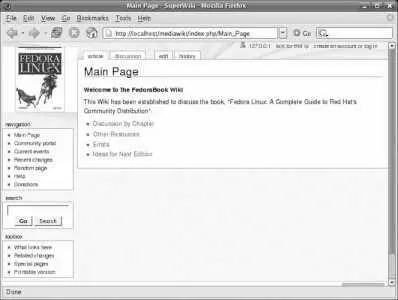
You can then edit the front page of your Wiki by clicking on the "edit" link at the top of the page; changes are made using the same Wikitext format used on Wikipedia. Figure 7-29 shows a fully configured MediaWiki installation.
Figure 7-29. Configured MediaWiki front page
7.10.2. How Does It Work?
MediaWiki is written as a collection of PHP scripts, with some Perl scripts for maintenance functions. The Fedora Extras MediaWiki package installs these files in /var/www/mediawiki , which is within the default Apache Document Root. The file /etc/httpd/conf.d/mediawiki.conf limits access to the mediawiki subdirectories, ensuring that only a browser on the same machine as the server can access the configuration page and making several other directories inaccessible through the Web.
All of the Wiki content is stored in the MySQL database for fast, index-based access. Users indicate how they want text to appear by using Wikitext markings; most of these are converted to HTML when the page is displayed, but some (such as --~~~ , which is converted to the user's name) are translated when the page is saved.
7.10.3. What About...
7.10.3.1. ...changing the appearance of the Wiki?
You can alter the appearance of the Wiki by editing the value of $wgDefaultSkin in /var/www/mediawiki/LocalSettings.php . This variable must be set to the name of one of the skin files in /var/www/mediawiki/skins/ ; for example, to use the simple skin, place this line in the LocalSettings.php file:
$wgDefaultSkin="simple";
Additional skins are available from the Wikimedia "Gallery of user styles" ( http://meta.wikimedia.org/wiki/Gallery_of_user_styles ).
7.10.3.2. ...using a logo that isn't rectangular?
Use a graphics tool such as the GIMP to create an image with transparency, so that the page background shows through the portions of the 155x135 logo rectangle that are not occupied by your logo image. For example, if you had an oval image, the space between the outer edge of the logo and the edge of the logo rectangle would be transparent. Save your image in PNG format.
7.10.3.3. ...moving or deleting a page, or protecting a page against edits?
All of these operations can be performed by the sysop user. Go to the main page of the Wiki and log in using the sysop username and password created during the initial configuration of the Wiki, and you will see additional tabs on the top of each page for protecting, deleting, and moving.
7.10.4. Where Can I Learn More?
The MediaWiki web page: http://www.mediawiki.org
The files in /usr/share/doc/mediawiki*/docs
The Wikipedia Cheatsheet, which describes the Wikitext format on a reference card: http://upload.wikimedia.org/wikipedia/commons/0/05/Cheatsheet-en.pdf
7.11. Configuring an FTP Server
File Transfer Protocol (FTP) is a long-established Internet protocol for downloading files. In Fedora, you can use the Very Safe FTP program, vsftp , to serve data via FTP.
7.11.1. How Do I Do That?
To serve content via FTP, just install the vsftpd package and place the content that you wish to make publicly available in the /var/ftp directory.
If you are using a firewall, you will need to open the FTP ports in the firewall
To view the contents of /var/ftp with a browser, go to ftp:/// . To access files in a home directory, use the URL ftp://@/ (the browser will ask for your password) or ftp://:@/ .
To access the contents of /var/ftp using a command-line FTP client program, log in as anonymous and use your email address as your password:
Читать дальшеИнтервал:
Закладка:
Похожие книги на «Fedora Linux»
Представляем Вашему вниманию похожие книги на «Fedora Linux» списком для выбора. Мы отобрали схожую по названию и смыслу литературу в надежде предоставить читателям больше вариантов отыскать новые, интересные, ещё непрочитанные произведения.










Обсуждение, отзывы о книге «Fedora Linux» и просто собственные мнения читателей. Оставьте ваши комментарии, напишите, что Вы думаете о произведении, его смысле или главных героях. Укажите что конкретно понравилось, а что нет, и почему Вы так считаете.