Chris Tyler - Fedora Linux
Здесь есть возможность читать онлайн «Chris Tyler - Fedora Linux» весь текст электронной книги совершенно бесплатно (целиком полную версию без сокращений). В некоторых случаях можно слушать аудио, скачать через торрент в формате fb2 и присутствует краткое содержание. Год выпуска: 2006, ISBN: 2006, Издательство: O'Reilly, Жанр: ОС и Сети, на английском языке. Описание произведения, (предисловие) а так же отзывы посетителей доступны на портале библиотеки ЛибКат.

- Название:Fedora Linux
- Автор:
- Издательство:O'Reilly
- Жанр:
- Год:2006
- ISBN:978-0-596-52682-5
- Рейтинг книги:5 / 5. Голосов: 1
-
Избранное:Добавить в избранное
- Отзывы:
-
Ваша оценка:
Fedora Linux: краткое содержание, описание и аннотация
Предлагаем к чтению аннотацию, описание, краткое содержание или предисловие (зависит от того, что написал сам автор книги «Fedora Linux»). Если вы не нашли необходимую информацию о книге — напишите в комментариях, мы постараемся отыскать её.
Fedora Linux: A Complete Guide to Red Hat's Community Distribution In this book, you'll learn how to:
Install Fedora and perform basic administrative tasks
Configure the KDE and GNOME desktops
Get power management working on your notebook computer and hop on a wired or wireless network
Find, install, and update any of the thousands of packages available for Fedora
Perform backups, increase reliability with RAID, and manage your disks with logical volumes
Set up a server with file sharing, DNS, DHCP, email, a Web server, and more
Work with Fedora's security features including SELinux, PAM, and Access Control Lists (ACLs)
Whether you are running the stable version of Fedora Core or bleeding-edge Rawhide releases, this book has something for every level of user. The modular, lab-based approach not only shows you how things work - but also explains why--and provides you with the answers you need to get up and running with Fedora Linux.
Fedora Linux — читать онлайн бесплатно полную книгу (весь текст) целиком
Ниже представлен текст книги, разбитый по страницам. Система сохранения места последней прочитанной страницы, позволяет с удобством читать онлайн бесплатно книгу «Fedora Linux», без необходимости каждый раз заново искать на чём Вы остановились. Поставьте закладку, и сможете в любой момент перейти на страницу, на которой закончили чтение.
Интервал:
Закладка:
Effective security requires a multipronged approach, and Fedora provides effective tools to secure your system in several different ways:
Filtering of network traffic
System activity logging and automatic monitoring tools
Discretionary access controls such as permissions and access control lists
Mandatory access controls through SELinux
Intrusion-detection tools and immutable file attributes to detect and prevent file alteration
Tools to delegate specific system administration privileges to different users
Together with automated software updates, these tools enable you to efficiently maintain your system security.
8.1. Prevent Unwanted Connections
Most Fedora systems are connected to a TCP/IP network. You can guard against unwanted inbound connections to your system by using the built-in firewall.
8.1.1. How Do I Do That?
To adjust the Fedora firewall graphically, select the menu option System→Administration→"Security Level and Firewall." After you enter the root password, the window shown in Figure 8-1 will appear.
Figure 8-1. Firewall configuration tool
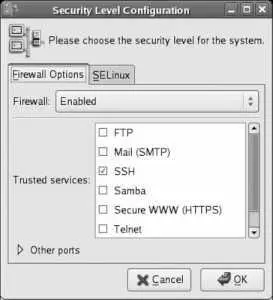
The control at the top of this window enables and disables the firewall. When the firewall is enabled, the lower portion of this window can be used to permit connections to your system for selected services; simply select the checkboxes for the desired services. SSH should remain selected to permit secure remote administration.
To permit connections to services that are not listed, click on the triangle for "Other ports." The display will change to reveal an additional section, as shown in Figure 8-2 .
Figure 8-2. Configuring other ports
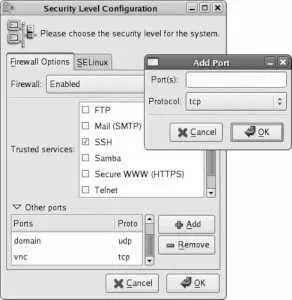
To add additional ports, click the Add button, and the window shown on the right side of Figure 8-2 will pop up. Enter the port number or the service name, select TCP or UDP for the protocol, and click OK.
A list of most of the common services and their corresponding port numbers can be found in the file /etc/services .
When the firewall is configured to your liking, click OK.
8.1.1.1. Configuring the firewall in text mode
Enter this command:
# lokkit
The screen displayed in Figure 8-3 will appear. Use the Tab key to navigate among fields, the spacebar to select and deselect checkboxes, and Enter or the spacebar to activate buttons.
Figure 8-3. Lokkit firewall configuration screen

Enable or disable the firewall using the checkboxes. To customize the types of connections that are permitted through the firewall, tab to the Customize button and press Enter. The customization screen shown in Figure 8-4 will appear.
Figure 8-4. Lokkit firewall customization screen
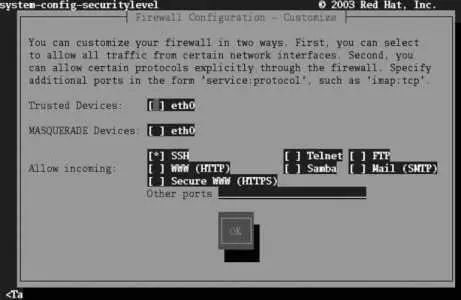
The Trusted Devices and MASQUERADE Devices checkboxes are applicable only to systems with multiple network connections. Do not select either of those options on a system with a single network interface.
The Trusted Devices checkbox will disable firewall protection for the selected interface!
Use the Allow Incoming checkboxes to select the services that will be permitted to connect to your system through the firewall. In almost all cases, SSH should be selected to permit secure remote connections for system administration.
To allow incoming connections to services that are not listed, enter the port number or service, followed by a colon (:), and the protocol (TCP or UDP) into the "Other ports" field at the bottom of the screen. You will need to separate multiple entries with a space or comma. For example, to permit incoming connections to the VNC service as well as to a custom UDP service running on port 64447, use:
vnc:tcp 64447:udp
Select OK to return to the main screen ( Figure 8-3 ); select OK on that screen to save your settings and exit.
8.1.1.2. Temporarily disabling the firewall from the command line
To disable the firewall until the next reboot, stop the iptables service:
# service iptables stop
To reset your firewall to the configured settings, restart the iptables service:
# service iptables restart
8.1.2. How Does It Work?
The Fedora firewall uses the kernel's iptables capability, which can filter packets based on their source, destination, port, protocol, contents, and current connection state.
To view the current iptables configuration, use the -L option:
# iptables -L
Chain INPUT (policy ACCEPT)
target prot opt source destination
RH-Firewall-1-INPUT all -- anywhere anywhere
Chain FORWARD (policy ACCEPT)
target prot opt source destination
RH-Firewall-1-INPUT all -- anywhere anywhere
Chain OUTPUT (policy ACCEPT)
target prot opt source destination
Chain RH-Firewall-1-INPUT (2 references)
target prot opt source destination
ACCEPT all -- anywhere anywhere
ACCEPT icmp -- anywhere anywhere icmp any
ACCEPT ipv6-crypt-- anywhere anywhere
ACCEPT ipv6-auth-- anywhere anywhere
ACCEPT udp -- anywhere 224.0.0.251 udp dpt:mdns
ACCEPT udp -- anywhere anywhere udp dpt:ipp
ACCEPT tcp -- anywhere anywhere tcp dpt:ipp
ACCEPT all -- anywhere anywhere state RELATED,ESTABLISHED
ACCEPT tcp -- anywhere anywhere state NEW tcp dpt:ssh
REJECT all -- anywhere anywhere reject-with icmp-host-prohibited
There are four chains of rules defined here:
INPUT
Filters packets that are inbound to this system.
FORWARD
Filters packets that are passing through the system. This applies only if there is more than one network interface and IP forwarding is turned on to pass packets between the interfaces (for example, in a system serving as a router).
OUTPUT
Filters packets that are outbound from this system.
RH-Firewall-1-INPUT
This is the chain of rules configured by the firewall system. Notice that this chain is included into the chains for INPUT and FORWARD.
In this example, IPP (Internet Print Protocol, used by CUPS), MDNS (multicast DNS, used by Avahi), and SSH connections are all permitted; only SSH was configured for the firewall, demonstrating that not all services are configured through the firewall configuration tools.
Since the policy for each chain is ACCEPT, flushing (clearing) the rules will result in all packets being accepted. This is exactly what the iptables -F command does, which is executed when the iptables service is stopped.
The graphical firewall configuration tool is system-config-securitylevel (which, in recent versions, also handles SELinux configuration). The character-based version is system-config-securitylevel-tui , which is also known as lokkit . Both of these tools save the firewall configuration in /etc/sysconfig/system-config-securitylevel and, from that configuration, derive a set of iptables rules that are saved in /etc/sysconfig/iptables . That file, in turn, is used by the iptables service ( /etc/init.d/iptables ) to configure the firewall; options that control the operation of the iptables service are stored in /etc/sysconfig/iptables-config .
Читать дальшеИнтервал:
Закладка:
Похожие книги на «Fedora Linux»
Представляем Вашему вниманию похожие книги на «Fedora Linux» списком для выбора. Мы отобрали схожую по названию и смыслу литературу в надежде предоставить читателям больше вариантов отыскать новые, интересные, ещё непрочитанные произведения.











Обсуждение, отзывы о книге «Fedora Linux» и просто собственные мнения читателей. Оставьте ваши комментарии, напишите, что Вы думаете о произведении, его смысле или главных героях. Укажите что конкретно понравилось, а что нет, и почему Вы так считаете.