Chris Tyler - Fedora Linux
Здесь есть возможность читать онлайн «Chris Tyler - Fedora Linux» весь текст электронной книги совершенно бесплатно (целиком полную версию без сокращений). В некоторых случаях можно слушать аудио, скачать через торрент в формате fb2 и присутствует краткое содержание. Год выпуска: 2006, ISBN: 2006, Издательство: O'Reilly, Жанр: ОС и Сети, на английском языке. Описание произведения, (предисловие) а так же отзывы посетителей доступны на портале библиотеки ЛибКат.
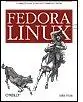
- Название:Fedora Linux
- Автор:
- Издательство:O'Reilly
- Жанр:
- Год:2006
- ISBN:978-0-596-52682-5
- Рейтинг книги:5 / 5. Голосов: 1
-
Избранное:Добавить в избранное
- Отзывы:
-
Ваша оценка:
Fedora Linux: краткое содержание, описание и аннотация
Предлагаем к чтению аннотацию, описание, краткое содержание или предисловие (зависит от того, что написал сам автор книги «Fedora Linux»). Если вы не нашли необходимую информацию о книге — напишите в комментариях, мы постараемся отыскать её.
Fedora Linux: A Complete Guide to Red Hat's Community Distribution In this book, you'll learn how to:
Install Fedora and perform basic administrative tasks
Configure the KDE and GNOME desktops
Get power management working on your notebook computer and hop on a wired or wireless network
Find, install, and update any of the thousands of packages available for Fedora
Perform backups, increase reliability with RAID, and manage your disks with logical volumes
Set up a server with file sharing, DNS, DHCP, email, a Web server, and more
Work with Fedora's security features including SELinux, PAM, and Access Control Lists (ACLs)
Whether you are running the stable version of Fedora Core or bleeding-edge Rawhide releases, this book has something for every level of user. The modular, lab-based approach not only shows you how things work - but also explains why--and provides you with the answers you need to get up and running with Fedora Linux.
Fedora Linux — читать онлайн бесплатно полную книгу (весь текст) целиком
Ниже представлен текст книги, разбитый по страницам. Система сохранения места последней прочитанной страницы, позволяет с удобством читать онлайн бесплатно книгу «Fedora Linux», без необходимости каждый раз заново искать на чём Вы остановились. Поставьте закладку, и сможете в любой момент перейти на страницу, на которой закончили чтение.
Интервал:
Закладка:
The default ~/.bash_profile looks like this:
# .bash_profile
# Get the aliases and functions
if [ -f ~/.bashrc ]; then
. ~/.bashrc
fi
# User specific environment and startup programs
PATH=$PATH:$HOME/bin
export PATH
You can edit /etc/profile to change the login process for all users, or ~/.bash_profile to change just your login process. One useful change that I make to every Fedora system I install is to comment out the if statements for path manipulation in /etc/profile so that every user has the superuser binary directories in his path:
# Path manipulation
#if [ "$EUID" = "0" ]; then
pathmunge /sbin
pathmunge /usr/sbin
pathmunge /usr/local/sbin
#fi
bash comments start with # and are not executed so commenting out code means adding # at the start of selected lines to disable them
Environment variables are inherited by child processes, so any environment variables set up during the login process are accessible to all shells (and other programs) you start. bash also supports the use of aliases , or nicknames, for commands, but since these are not inherited by child processes, they are instead placed in the file ~/.bashrc , which is executed each time a shell starts. If you log in once and then start three shells, ~/.bash_profile is executed once at login and ~/.bashrc is executed three times, once for each shell that starts.
This is the default ~/.bashrc :
# .bashrc
# Source global definitions
if [ -f /etc/bashrc ]; then
. /etc/bashrc
fi
# User-specific aliases and functions
As you can see, there aren't any alias definitions in there (but you can add them). The file /etc/bashrc is invoked by this script, and it contains common aliases made available to all users:
# System-wide functions and aliases
# Environment stuff goes in /etc/profile
# By default, we want this to get set.
# Even for noninteractive, nonlogin shells.
umask 022
# Are we an interactive shell?
if [ "$PS1" ]; then
case $TERM in
xterm*)
if [ -e /etc/sysconfig/bash-prompt-xterm ]; then
PROMPT_COMMAND=/etc/sysconfig/bash-prompt-xterm
else
PROMPT_COMMAND='echo -ne ↵
"\033]0;${USER}@${HOSTNAME%%.*}:${PWD/#$HOME/~}";
echo -ne "\007"'
fi
;;
screen)
if [ -e /etc/sysconfig/bash-prompt-screen ]; then
PROMPT_COMMAND=/etc/sysconfig/bash-prompt-screen
else
PROMPT_COMMAND='echo -ne "\033_${USER}@${HOSTNAME%%.*}:${PWD/#$HOME/~}"; echo -ne "\033\\"'
fi
;;
*)
[ -e /etc/sysconfig/bash-prompt-default ] && PROMPT_COMMAND=/etc/sysconfig/bash-prompt-default
;;
esac
# Turn on checkwinsize
shopt -s checkwinsize
[ "$PS1" = "\\s-\\v\\\$ " ] && PS1="[\u@\h \W]\\$ "
fi
if ! shopt -q login_shell ; then # We're not a login shell
# Need to redefine pathmunge, it get's undefined at the end of /etc/profile
pathmunge ( ) {
if ! echo $PATH | /bin/egrep -q "(^|:)$1($|:)" ; then
if [ "$2" = "after" ] ; then
PATH=$PATH:$1
else
PATH=$1:$PATH
fi
fi
}
for i in /etc/profile.d/*.sh; do
if [ -r "$i" ]; then
. $i
fi
done
unset i
unset pathmunge
fi
# vim:ts=4:sw=4
This script sets up the umask , configures a command that will be executed before the display of each prompt (which sets the terminal-window title to show the user, host, and current directory), and then executes each of the files in /etc/profile.d that end in .sh .
Packages installed on your Fedora system can include files that are placed in /etc/profile.d , providing a simple way for each package to globally add aliases or other shell configuration options. There are a few command aliases defined in these script files, including:
alias l.='ls -d .* --color=tty'
alias ll='ls -l --color=tty'
alias ls='ls --color=tty'
alias vi='vim'
If you type llat a command prompt, ls -l will be executed, due to the alias highlighted in the preceding listing:
$ ll /
total 138
drwxr-xr-x 2 root root 4096 Jul 17 08:08 bin
drwxr-xr-x 4 root root 1024 Jul 15 11:16 boot
drwxr-xr-x 12 root root 3900 Jul 19 07:56 dev
drwxr-xr-x 102 root root 12288 Jul 18 18:14 etc
drwxr-xr-x 8 root root 4096 Jul 16 22:51 home
drwxr-xr-x 11 root root 4096 Jul 17 07:58 lib
drwx------ 2 root root 16384 Jun 9 19:34 lost+found
drwxr-xr-x 4 root root 4096 Jul 18 18:14 media
drwxr-xr-x 2 root root 0 Jul 18 11:48 misc
drwxr-xr-x 6 root root 4096 Jul 15 11:38 mnt
drwxr-xr-x 2 root root 0 Jul 18 11:48 net
drwxr-xr-x 2 root root 4096 Jul 12 04:48 opt
dr-xr-xr-x 126 root root 0 Jul 18 11:46 proc
drwxr-x--- 9 root root 4096 Jul 18 00:18 root
drwxr-xr-x 2 root root 12288 Jul 17 08:08 sbin
drwxr-xr-x 4 root root 0 Jul 18 11:46 selinux
drwxr-xr-x 2 root root 4096 Jul 12 04:48 srv
drwxr-xr-x 11 root root 0 Jul 18 11:46 sys
drwxrwxrwt 98 root root 4096 Jul 19 11:04 tmp
drwxr-xr-x 14 root root 4096 Jul 14 04:17 usr
drwxr-xr-x 26 root root 4096 Jul 14 04:17 var
Similarly, if you type vithe shell will execute vim .
You can create your own aliases using the alias command; for example, I like to use l for ls -l , sometimes use cls to clear the screen, and like to have machine report the hostname (old habits):
$ alias l='ls -l
$ alias cls='clear'
$ alias machine='hostname'
Adding the same lines to ~/.bashrc will make them available every time you start a new shell; adding them to ~/.bashrc will make them available to all users.
You can see the currently defined aliases by typing aliasalone as a command:
$ alias
alias cls='clear'
alias l='ll'
alias l.='ls -d .* --color=tty'
alias ll='ls -l --color=tty'
alias ls='ls --color=tty'
alias machine='hostname'
alias vi='vim'
To destroy an alias, use the unalias command:
$ unalias machine
Интервал:
Закладка:
Похожие книги на «Fedora Linux»
Представляем Вашему вниманию похожие книги на «Fedora Linux» списком для выбора. Мы отобрали схожую по названию и смыслу литературу в надежде предоставить читателям больше вариантов отыскать новые, интересные, ещё непрочитанные произведения.











Обсуждение, отзывы о книге «Fedora Linux» и просто собственные мнения читателей. Оставьте ваши комментарии, напишите, что Вы думаете о произведении, его смысле или главных героях. Укажите что конкретно понравилось, а что нет, и почему Вы так считаете.