Paul Thurrott - Windows 8 Secrets
Здесь есть возможность читать онлайн «Paul Thurrott - Windows 8 Secrets» — ознакомительный отрывок электронной книги совершенно бесплатно, а после прочтения отрывка купить полную версию. В некоторых случаях можно слушать аудио, скачать через торрент в формате fb2 и присутствует краткое содержание. Город: Indianapolis, IN, Год выпуска: 2012, ISBN: 2012, Издательство: John Wiley & Sons, Inc., Жанр: Программы, на английском языке. Описание произведения, (предисловие) а так же отзывы посетителей доступны на портале библиотеки ЛибКат.
- Название:Windows 8 Secrets
- Автор:
- Издательство:John Wiley & Sons, Inc.
- Жанр:
- Год:2012
- Город:Indianapolis, IN
- ISBN:978-1-118-20413-9
- Рейтинг книги:5 / 5. Голосов: 1
-
Избранное:Добавить в избранное
- Отзывы:
-
Ваша оценка:
Windows 8 Secrets: краткое содержание, описание и аннотация
Предлагаем к чтению аннотацию, описание, краткое содержание или предисловие (зависит от того, что написал сам автор книги «Windows 8 Secrets»). Если вы не нашли необходимую информацию о книге — напишите в комментариях, мы постараемся отыскать её.
Amazon.com Review
Q & A with the authors of From the Back Cover Microsoft is introducing a major new release of its Windows operating system, Windows 8, and what better way for you to learn all the ins and outs than from two internationally recognized Windows experts and Microsoft insiders, authors Paul Thurrott and Rafael Rivera? They cut through the hype to get at useful information you’ll not find anywhere else, including what role this new OS plays in a mobile and tablet world.
Regardless of your level of knowledge, you’ll discover little-known facts about how things work, what’s new and different, and how you can modify Windows 8 to meet what you need.
Windows 8 Secrets
• • • • • • • • • • • • • • • Windows 8 Secrets Should consumers adopt Windows 8 or Windows RT? Windows RT offers both advantages and disadvantages compared to Windows 8, and which you choose will depend on your needs. The biggest issue with Windows RT, of course, is the lack of desktop application compatibility: Though it comes with most Windows 8 desktop utilities and a version of Microsoft Office, Windows RT is not compatible with any third party or Microsoft desktop Windows applications that are already included. That said, Windows RT should offer much better battery life and amazingly thin and light form factors when compared to similar PCs and devices designed around a traditional PC microprocessor.
What’s best way to upgrade from Windows 7 to Windows 8? Upgrade or clean install? Is an upgrade safe? Generally speaking, you will actually see better results with an upgrade with this version of Windows, which is different than our experience with previous versions. To be safe, backup everything first, perform the upgrade, and if it doesn’t go well, you can always do a clean install afterwards.
One thing to watch during an upgrade, however, is Internet Explorer: If you have configured a different browser as your default browser in Windows 7 and then upgrade to Windows 8, you will actually lose the ability to run the Metro-style version of Internet Explorer 10. You can fix this by configuring IE as your default browser after the fact.
Does Windows 8 really run faster and better than Windows 7 on the same hardware? Yes. But in real world usage, you won’t notice much of a difference in usage. That said, Windows 8 boots, resumes from sleep, and performs other power management functions much, much faster than does Windows 7. You can also use Push Button Reset to refresh or reset a Windows 8 PC in just minutes.
Will all of my Windows 7 apps and drivers work with Windows 8? For the most part, yes. Microsoft claims that if it works with Windows 7, it should work with Windows 8. And in our experience, that has definitely been the case. Even the now-ancient game “Halo: Combat Evolved,” from 2003 installs and runs just fine. That said, you may need to uninstall some applications if you’re upgrading from Windows 7 to Windows 8, and then reinstall them after the fact. And of course there will always be some exceptions.
What are the most important keyboard combinations we should memorize? If you remember just one keyboard shortcut, it should be WINKEY + C, which enables the Charms and access to several key system functions, including Search, Share, Start, Devices, and Settings. Some other useful keyboard shortcuts include WINKEY + D (to navigate directly to the desktop), WINKEY + I (for Settings), and WINKEY + L for lock. And let’s not forget our favorite keyboard combination: WINKEY + X, which displays a power user menu of sorts containing lots of useful shortcuts.
In their introduction, the authors of this book say that “with Windows 8, suddenly, everything is different.” And they are right—with a completely new interface presenting users with a completely new experience, Windows 8 and its device-based cousin Windows RT are arguably the biggest change in Windows ever. But bestselling authors Paul Thurrott and Rafael Rivera have you covered with Windows 8 Secrets, a completely new, written-from-scratch guide to the ins and outs of this new Windows experience. Covering topics both large and small, ranging from how the new immersive experiences and familiar Windows desktop interface coexist to the subtle differences in interacting with Windows 8 via touch, keyboard, or mouse, this book digs in to reveal helpful and advanced insight in all major Windows areas: application management, data backup and security, networking, and much more.
The Insider’s Guide to:
• • • • • • • • • The Secrets series reveals:
• • • • • [Contain tables. Best viewed with CoolReader.]
Windows 8 Secrets — читать онлайн ознакомительный отрывок
Ниже представлен текст книги, разбитый по страницам. Система сохранения места последней прочитанной страницы, позволяет с удобством читать онлайн бесплатно книгу «Windows 8 Secrets», без необходимости каждый раз заново искать на чём Вы остановились. Поставьте закладку, и сможете в любой момент перейти на страницу, на которой закончили чтение.
Интервал:
Закладка:
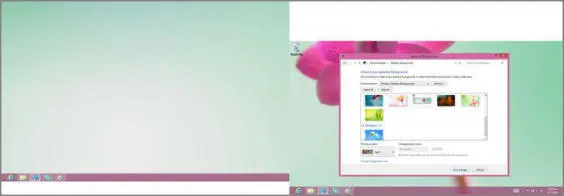
Be sure to select Span from the Picture position drop-down as well to see the effect correctly. It also helps if the displays are lined up properly, since otherwise the picture will stagger from screen to screen.
In case it’s not obvious, all desktop themes designed for Windows 7 still work the same with Windows 8, too.
Note that Microsoft is also making panoramic wallpapers and themes available from its Windows Personalization Gallery website at windows.microsoft.com/en-US/windows/downloads/personalize. This collection is updated regularly, so be sure to check it out from time to time.
Another choice is to use a different background picture for each display. This is absolutely possible in Windows 8, though it’s not particularly obvious.
It can’t be a solid color for some reason.
To do so, navigate to the Desktop Background control panel. (Again, via Personalize and then Desktop Background or from Start Search, with desktop background ). Select a (picture) location from the Picture location drop-down list and then select the picture you want for the first display. Then, right-click that picture and choose Set for monitor 1, as shown in Figure 5-34.
Figure 5-34:Specifying a background picture for the first display only
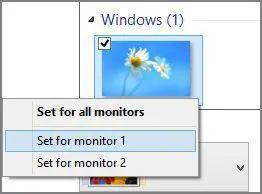
Then, find the picture you want for the second display, right-click it, and choose Set for monitor 2. Repeat as necessary for further displays.
By default, the taskbar will duplicate on each display even if you’ve chosen the Extend option. But you can change this so that the taskbar on each screen is specific to that screen. To do so, right-click an empty area of the taskbar (any screen will do) and choose Properties. You’ll see the Taskbar Properties window shown in Figure 5-35.
There are four possible configurations for the taskbar on a PC with multiple displays:
• Duplicated across all displays:By default, the same taskbar will appear on all displays and its collection of buttons will be duplicated on each. That is, the taskbar on each display will be identical.
• Taskbar only on the primary display:If you’d like to display the taskbar only on the primary display, uncheck the option titled Show taskbar on all displays in Taskbar Properties. This will eliminate the taskbar on all secondary displays, and display it only on the first, or primary, display.
Figure 5-35:New to Taskbar Properties: a way to control how the taskbar works with multiple displays

• A unique taskbar on each display:If you’d prefer to have a taskbar on each display but would like each to hold buttons (shortcuts for running and non-running programs) that are specific only to that display, choose “Taskbar where window is open” from the Show taskbar buttons on drop-down. In this configuration, the secondary displays will only display buttons for windows and applications that are open on that screen.
• A unique taskbar on each display, but all open windows available on primary display, too:This most confusing of options is basically identical to the previous configuration, but with a twist: Open windows and applications will display a button on the taskbar of both the display they’re open on as well as the primary display.
You may recall that you can only use the Metro environment on one display. The question is: Which display?
As it turns out, there’s no user interface for specifying which display is used for Metro, and of course it uses the primary display, or what’s sometimes referred to as Monitor 1, by default. You can, however, change which display Metro uses. As is so often the case, you just need to know the trick.
The only issue with this tip is that it’s not persistent across reboots. Metro will stay on the secondary display until you reboot, but once you do, you’ll need to perform this drag-and-drop operation again.
To switch Metro from the primary display to a secondary display, you need to launch any Metro-style app. That is, you cannot do this from the Start screen. Once you have a Metro-style app running, “grab” the top of the app via touch or mouse—the cursor will change into a gloved hand cursor if you’re using the mouse—and then drag the app to the display you prefer.
To the Cloud! Do More with Libraries
When it comes to libraries, Windows 8 works much like Windows 7, with the only major difference being that the new ribbon-based File Explorer exposes library options and configurations in a much more obvious way, as you can see in Figure 5-36.
Figure 5-36:The easier-to-find Library management features in Windows 8
The SkyDrive app for Windows caches the contents your SkyDrive cloud storage to the hard drive so that it’s available when your PC is offline, too.
As before, you can configure which physical folders are used to populate individual libraries and you can, as before, make your own libraries, too. What’s different in Windows 8 is that Microsoft is now providing SkyDrive apps for both the Metro and desktop environments (though only the former is available “in the box” with the OS). This means you can now access and use cloud-based SkyDrive storage as if it were part of your PC’s hard drive, including with libraries.
Once you’ve downloaded and installed the SkyDrive application for Windows (apps.live.com/skydrive), it will sync the contents of your SkyDrive cloud storage to the location on your PC that you configured. Then, you can access your SkyDrive storage as you do with any other storage that’s attached to your hard drive.
To add a SkyDrive-based folder to a library, simply right-click it in Explorer, as shown in Figure 5-37, and select Include in library and then the name of the library you prefer.
Figure 5-37:Adding a SkyDrive folder to a library
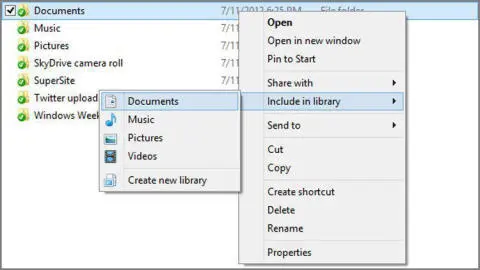
Then, you can even optionally make that cloud-based folder the default save location. To do so, open the library in question in Explorer and then select Set Save Location from the Library Tools — Manage tab in the ribbon. Voila! Now you have a file store that is replicated to the web and will survive a hard drive failure or operating system reinstall.
This tip works with other cloud providers, too. For example, Google provides a Google Drive app that lets you access its cloud-based storage natively from File Explorer as well. If you use this service instead of SkyDrive, you could of course add Google Drive-based folders to your libraries instead. You can download Google Drive for Windows from the Google website: tools.google.com/dlpage/drive.
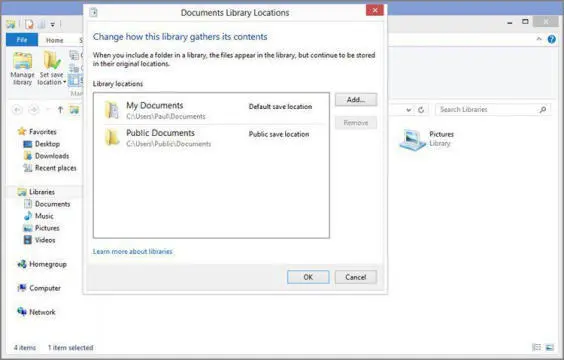
You could also take this tip to its logical conclusion and replace the default library locations with locations in SkyDrive. For example, you could create a Documents folder inside of SkyDrive, add it to the Documents library, and then remove the My Documents and Public Documents folders from the Documents library. Now a cloud-based folder will be your default save location for all of your documents and will be automatically replicated from PC to PC, and to the cloud.
Читать дальшеИнтервал:
Закладка:
Похожие книги на «Windows 8 Secrets»
Представляем Вашему вниманию похожие книги на «Windows 8 Secrets» списком для выбора. Мы отобрали схожую по названию и смыслу литературу в надежде предоставить читателям больше вариантов отыскать новые, интересные, ещё непрочитанные произведения.









Обсуждение, отзывы о книге «Windows 8 Secrets» и просто собственные мнения читателей. Оставьте ваши комментарии, напишите, что Вы думаете о произведении, его смысле или главных героях. Укажите что конкретно понравилось, а что нет, и почему Вы так считаете.