Christopher Negus - Linux Bible
Здесь есть возможность читать онлайн «Christopher Negus - Linux Bible» — ознакомительный отрывок электронной книги совершенно бесплатно, а после прочтения отрывка купить полную версию. В некоторых случаях можно слушать аудио, скачать через торрент в формате fb2 и присутствует краткое содержание. Жанр: unrecognised, на английском языке. Описание произведения, (предисловие) а так же отзывы посетителей доступны на портале библиотеки ЛибКат.
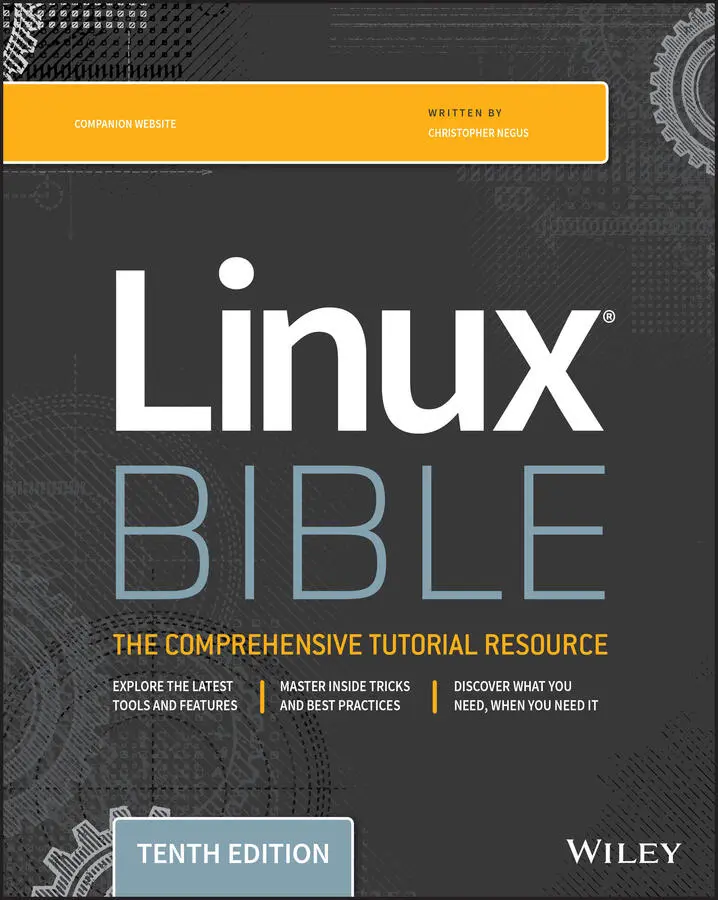
- Название:Linux Bible
- Автор:
- Жанр:
- Год:неизвестен
- ISBN:нет данных
- Рейтинг книги:4 / 5. Голосов: 1
-
Избранное:Добавить в избранное
- Отзывы:
-
Ваша оценка:
Linux Bible: краткое содержание, описание и аннотация
Предлагаем к чтению аннотацию, описание, краткое содержание или предисловие (зависит от того, что написал сам автор книги «Linux Bible»). Если вы не нашли необходимую информацию о книге — напишите в комментариях, мы постараемся отыскать её.
Linux Bible, 10th Edition This useful guide assumes a base of little or no Linux knowledge, and takes you step by step through what you need to know to get the job done.
Get Linux up and running quickly Master basic operations and tackle more advanced tasks Get up to date on the recent changes to Linux server system management Bring Linux to the cloud using Openstack and Cloudforms Simplified Linux administration through the Cockpit Web Interface Automated Linux Deployment with Ansible Learn to navigate Linux with Amazon (AWS), Google (GCE), and Microsofr Azure Cloud services
is the one resource you need, and provides the hands-on training that gets you on track in a flash.
Linux Bible — читать онлайн ознакомительный отрывок
Ниже представлен текст книги, разбитый по страницам. Система сохранения места последней прочитанной страницы, позволяет с удобством читать онлайн бесплатно книгу «Linux Bible», без необходимости каждый раз заново искать на чём Вы остановились. Поставьте закладку, и сможете в любой момент перейти на страницу, на которой закончили чтение.
Интервал:
Закладка:
$ ls -l total 4 -rw-rw-r--. 1 joe joe 0 Dec 18 13:38 apple lrwxrwxrwx. 1 joe joe 5 Dec 18 13:46 pointer_to_apple -> apple -rwxr-xr-x. 1 joe joe 0 Dec 18 13:37 scriptx.sh drwxrwxr-x. 2 joe joe 4096 Dec 18 13:38 Stuff
As you look at the long listing, notice that the first character of each line shows the type of file. A hyphen ( -) indicates a regular file, dindicates a directory, and l(lowercase L ) indicates a symbolic link. An executable file (a script or binary file that runs as a command) has execute bits turned on ( x). See more on execute bits in the upcoming section “Understanding File Permissions and Ownership.”
You should become familiar with the contents of your home directory next. Use the -land -aoptions to ls.
$ ls -la /home/joe total 158 drwxrwxrwx 2 joe sales 4096 May 12 13:55 . drwxr-xr-x 3 root root 4096 May 10 01:49 .. -rw------- 1 joe sales 2204 May 18 21:30 .bash_history -rw-r--r-- 1 joe sales 24 May 10 01:50 .bash_logout -rw-r--r-- 1 joe sales 230 May 10 01:50 .bash_profile -rw-r--r-- 1 joe sales 124 May 10 01:50 .bashrc drw-r--r-- 1 joe sales 4096 May 10 01:50 .kde -rw-rw-r-- 1 joe sales 149872 May 11 22:49 letter ^ ^ ^ ^ ^ ^ ^ col 1 col 2 col 3 col 4 col 5 col 6 col 7
Displaying a long list ( -loption) of the contents of your home directory shows you more about file sizes and directories. The totalline shows the total amount of disk space used by the files in the list (158 kilobytes in this example). Adding the all files option ( -a) displays files that begin with a dot ( .). Directories such as the current directory ( .) and the parent directory ( ..)—the directory above the current directory—are noted as directories by the letter dat the beginning of each entry. Each directory begins with a dand each file begins with a dash ( -).
The file and directory names are shown in column 7. In this example, a dot ( .) represents /home/joeand two dots ( ..) represent /home—the parent directory of /joe. Most of the files in this example are dot ( .) files that are used to store GUI properties ( .kdedirectory) or shell properties ( .bashfiles). The only non-dot file in this list is the one named letter. Column 3 shows the directory or file owner. The /homedirectory is owned by root, and everything else is owned by the user joe, who belongs to the sales group (groups are listed in column 4).
In addition to the dor -, column 1 on each line contains the permissions set for that file or directory. Other information in the listing includes the number of hard links to the item (column 2), the size of each file in bytes (column 5), and the date and time each file was most recently modified (column 6).
Here are a few other facts about file and directory listings:
The number of characters shown for a directory (4096 bytes in these examples) reflects the size of the file containing information about the directory. Although this number can grow above 4096 bytes for a directory that contains lots of files, this number doesn't reflect the size of files contained in that directory.
The format of the time and date column can vary. Instead of displaying “May 12,” the date might be displayed as “2019-05-12,” depending upon the distribution and the language setting (LANG variable).
On occasion, instead of seeing the execute bit (x) set on an executable file, you may see an s in that spot instead. With an s appearing within either the owner (-rwsr-xr-x) or group (-rwxr-sr-x) permissions, or both (-rwsr-sr-x), the application can be run by any user, but ownership of the running process is assigned to the application's user/group instead of that of the user launching the command. This is referred to as a set UID or set GID program, respectively. For example, the mount command has permissions set as -rwsr-xr-x. This allows any user to run mount to list mounted filesystems (although you still have to be root to use mount to actually mount filesystems from the command line, in most cases).
If a t appears at the end of a directory, it indicates that the sticky bit is set for that directory (for example, drwxrwxr-t). By setting the sticky bit on a directory, the directory's owner can allow other users and groups to add files to the directory but prevent users from deleting each other's files in that directory. With a set GID assigned to a directory, any files created in that directory are assigned the same group as the directory's group. (If you see a capital S or T instead of the execute bits on a directory, it means that the set GID or sticky bit permission, respectively, was set, but for some reason the execute bit was not also turned on.)
If you see a plus sign at the end of the permission bits (for example, -rw-rw-r--+), it means that extended attributes (+), such as Access Control Lists (ACLs), are set on the file. A dot at the end (.) indicates that SELinux is set on the file.
Identifying Directories
When you need to identify your home directory on a shell command line, you can use the following:
| $HOME | This environment variable stores your home directory name. | |
| ~ | The tilde ( ~) represents your home directory on the command line. |
You can also use the tilde to identify someone else's home directory. For example, ~joewould be expanded to the joehome directory (probably /home/joe). So, if I wanted to go to the directory /home/joe/test, I could enter cd ~joe/testto get there.
Other special ways of identifying directories in the shell include the following:
| . | A single dot (.) refers to the current directory. |
| .. | Two dots ( ..) refer to a directory directly above the current directory. |
| $PWD | This environment variable refers to the current working directory. |
| $OLDPWD | This environment variable refers to the previous working directory before you changed to the current one. (Entering cd –returns you to the directory represented by $OLDPWD.) |
As I mentioned earlier, there are many useful options for the lscommand. Return to the $HOME/testdirectory in which you've been working. Here are some examples of lsoptions. Don't worry if the output doesn't exactly match what is in your directory at this point.
Any file or directory beginning with a dot ( .) is considered hidden and is not displayed by default with ls. These dot files are typically configuration files or directories that need to be in your home directory but don't need to be seen in your daily work. The -alets you see those files.
The -toption displays files in the order in which they were most recently modified. With the -Foption, a backslash ( /) appears at the end of directory names, an asterisk ( *) is added to executable files, and an at sign ( @) is shown next to symbolic links.
To show hidden and non-hidden files:
$ ls -a . apple docs grapefruit pointer_to_apple .stuff watermelon .. banana grape .hiddendir script.sh .tmpfile
To list all files by time most recently modified:
$ ls -at .tmpfile .hiddendir .. docs watermelon banana script.sh . .stuff pointer_to_apple grapefruit apple grape
Читать дальшеИнтервал:
Закладка:
Похожие книги на «Linux Bible»
Представляем Вашему вниманию похожие книги на «Linux Bible» списком для выбора. Мы отобрали схожую по названию и смыслу литературу в надежде предоставить читателям больше вариантов отыскать новые, интересные, ещё непрочитанные произведения.





Обсуждение, отзывы о книге «Linux Bible» и просто собственные мнения читателей. Оставьте ваши комментарии, напишите, что Вы думаете о произведении, его смысле или главных героях. Укажите что конкретно понравилось, а что нет, и почему Вы так считаете.