Andrew Hudson - Fedora™ Unleashed, 2008 edition
Здесь есть возможность читать онлайн «Andrew Hudson - Fedora™ Unleashed, 2008 edition» весь текст электронной книги совершенно бесплатно (целиком полную версию без сокращений). В некоторых случаях можно слушать аудио, скачать через торрент в формате fb2 и присутствует краткое содержание. Город: Indianapolis, Год выпуска: 2008, ISBN: 2008, Издательство: Sams Publishing, Жанр: ОС и Сети, на английском языке. Описание произведения, (предисловие) а так же отзывы посетителей доступны на портале библиотеки ЛибКат.
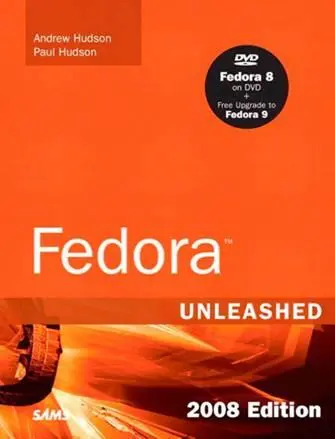
- Название:Fedora™ Unleashed, 2008 edition
- Автор:
- Издательство:Sams Publishing
- Жанр:
- Год:2008
- Город:Indianapolis
- ISBN:978-0-672-32977-7
- Рейтинг книги:5 / 5. Голосов: 1
-
Избранное:Добавить в избранное
- Отзывы:
-
Ваша оценка:
Fedora™ Unleashed, 2008 edition: краткое содержание, описание и аннотация
Предлагаем к чтению аннотацию, описание, краткое содержание или предисловие (зависит от того, что написал сам автор книги «Fedora™ Unleashed, 2008 edition»). Если вы не нашли необходимую информацию о книге — напишите в комментариях, мы постараемся отыскать её.
Finding information you need is not always easy. This short index provides a list of common tasks discussed inside this book. Browse the table of contents or index for detailed listings and consult the specified chapter for in-depth discussions about each subject.
left How Do I…?
See…
How Do I…?
See…
left Back up my system?
Chapter 13
Partition a hard drive?
Appendix B, Chapters 1, 35
left Build a new Linux kernel?
Chapter 36
Play MP3s and other music?
Chapter 7
left Burn a CD?
Chapter 7
Print a file?
Chapter 8
left Change a password?
Chapter 4
Read a text file?
Chapter 4
left Change the date and time?
Chapter 32
Read or send email?
Chapter 21
left Compress a file?
Chapter 13
Read or post to newsgroups?
Chapter 5
left Configure a modem?
Chapter 2
Reboot Fedora?
Chapter 1
left Configure a printer?
Chapter 8
Rescue my system?
Chapter 13
left Configure a scanner?
Chapter 7
Set up a DNS server?
Chapter 23
left Configure a sound card?
Chapter 7
Set up a firewall?
Chapter 14
left Configure my desktop settings?
Chapter 3
Set up a web server?
Chapter 15
left Connect to the Internet?
Chapter 5
Set up an FTP server?
Chapter 20
left Control a network interface?
Chapter 14
Set up Samba with SWAT?
Chapter 19
left Copy files or directories?
Chapters 13, 32
Set up wireless networking?
Chapter 14
left Create a boot disk to boot Fedora?
Chapter 1
Shut down Fedora?
Chapter 1
left Create a database?
Chapter 16
Use a spreadsheet?
Chapter 6
left Create a user?
Chapter 4
Use Instant Messaging?
Chapter 5
left Delete a file or directory?
Chapter 32
Watch television on my computer?
Chapter 7
left Get images from a digital camera?
Chapter 7
Edit a text file?
Chapter 4
left Install Fedora?
Chapter 1
Make Fedora more secure?
Chapter 14
left Log in to Fedora?
Chapter 1
Mount a CD-ROM or hard drive?
Chapter 35
Fedora™ Unleashed, 2008 edition — читать онлайн бесплатно полную книгу (весь текст) целиком
Ниже представлен текст книги, разбитый по страницам. Система сохранения места последней прочитанной страницы, позволяет с удобством читать онлайн бесплатно книгу «Fedora™ Unleashed, 2008 edition», без необходимости каждый раз заново искать на чём Вы остановились. Поставьте закладку, и сможете в любой момент перейти на страницу, на которой закончили чтение.
Интервал:
Закладка:
1. Give your virtual machine a friendly name (for example, FCUnleashed) so that you can differentiate between it and other virtual machines.
2. Allocate it some RAM, with the minimum being 256MB; more is better.
3. Choose where it should save its files. Xen uses a loopback filesystem so that all of a VM's files are stored in just one file on domain 0. Enter something like /home/paul/vms/fcu.img .
4. Select how big the virtual disk should be. For a basic install, around 4.0GB should be enough.
5. Set the install location (the place from which Fedora should install). This needs to be an online resource, so choose a server from http://mirrors.fedoraproject.org/publicist/Fedora/8.
Now sit back and wait. Downloading the necessary files can take quite a while, depending on your connection speed.
Once your files have been downloaded, the normal Fedora installer (Anaconda) will start, and will ask whether you want to install using text mode or VNC — choose Start VNC so that you have a graphical install. Xen's guests do not have direct access to the hardware, which means they have nowhere to display graphics. VNC lets you have your Xen VM render its graphics to your dom0 display inside a window, which means you can work with multiple VMs simultaneously. When you select Start VNC, you are prompted to enter a password. Click OK and you see the VNC address to which you need to connect. This address should look something like 10.0.0.1:1, where the :1 is the number of the VNC display.
Back on dom0, you should have installed VNC Viewer at the start of this chapter, so go to Applications, Accessories, VNC Viewer. Now enter that address (including the :1 or what ever it is for you) and click Connect. Enter your password when prompted. VNC starts and you see the Fedora installer. Depending on the resolution of your screen, the Fedora installer might not fit entirely on the screen; in that case, you have to use the scrollbars to get around.
The installer is as normal from here on in, except of course that it is using the virtual disk you created earlier so you have only a small amount of space. It might refer to your hard disk as something like /dev/xvda— do not worry about that.
Runtime Configuration
Now that your guest OS is up and running, you can start trying out more of the features of the xmcommand on dom0. You have already seen xm mem-set, which alters the amount of memory allocated to a machine. This works because the domU VM is aware of its virtualized state and can therefore handle having memory taken away. This extends further: You can use xm shutdown yourvmto have Xen politely request the VM to shutdown. On Linux, this goes through the whole shutdown sequence properly, ensuring that the machine is cleanly terminated. If you want an immediate shutdown, use xm destroy yourvm, but make sure the virtual machine is in a safe state first — if you have a text file open and unsaved, for example, it will be lost.
The xmcommand can also be used to save snapshots of a virtual machine, rather than just switching them off. To do this, use xm save yourvm yourvm .state. That command essentially saves the RAM of the yourvm VM (change yourvmto whatever you called your virtual machine) to a file and then turns off the VM. To restore a saved state, just use xm restore yourvm.state. If you want to create a virtual machine from a configuration file, use xm create -c yourconfig. Note that Xen searches the directory /etc/xenfor configuration files, and that each VM must have a unique name assigned to it and set in the configuration file.
You can connect to the console of any virtual machine by running xm console yourvm. To exit from a console, press Ctrl+] (Control + right bracket). This does not shut down the VM; the VM continues to run, but you are no longer connected to it and have to use xm connectto reconnect.
The configuration files in /etc/xenare in text format and so are easily edited. For example, if you want to change the number of CPUs a VM sees, look for the vcpussetting. Note that these are virtual CPUs rather than real ones — you can set this to 8 and have your guest see eight CPUs, even if your actual machine has just one. This is a great way to test a cluster without going beyond your desktop!
The following commands are useful for working with Xen on Fedora:
► virt-manager— Red Hat's new graphical Xen management system
► vncviewer— Lets you connect to the graphical output of a Xen VM
► xend— Starts and stops the Xen daemon without using the servicecommand
► xenguest-install.py— A helpful script that generates configuration files for you
► xm— Lets you manipulate the state of virtual machines while they are running
Reference
► http://www.xensource.com— A company (run by some of the Xen engineers) that offers help and support for Xen, as well as produces XenOptimizer to ease enterprise deployment.
► http://www.cl.cam.ac.uk/Research/SRG/netos/xen— The Xen home page at the Cambridge computer laboratory.
PART IV
Fedora As a Server
CHAPTER 17
Apache Web Server Management
This chapter covers the configuration and management of the Apache web server. The chapter includes an overview of some of the major components of the server and discussions of text-based and graphical server configuration. You will see how to start, stop, and restart Apache, using the command line and the Red Hat utilities included with Fedora. The chapter begins with some introductory information about this popular server and then shows you how to install, configure, and start using Apache.
About the Apache Web Server
Apache is the most widely used web server on the Internet today, according to a Netcraft survey of active websites in October 2007, which is shown in Table 17.1.
TABLE 17.1 Netcraft Survey Results (October 2007)
| Web Server | Number | Percentage |
|---|---|---|
| Apache | 68,155,320 | 47.73% |
| Microsoft* | 53,017,735 | 37.13% |
| 7,763,516 | 5.44% | |
| SunONE | 2,262,019 | 1.58% |
| lighttpd | 1,515,963 | 1.08% |
*All web server products
Note that these statistics do not reflect Apache's use on internal networks, known as intranets.
The name Apache appeared during the early development of the software because it was "a patchy" server, made up of patches for the freely available source code of the NCSA HTTPd web server. For a while after the NCSA HTTPd project was discontinued, a number of people wrote a variety of patches for the code, to either fix bugs or add features they wanted. A lot of this code was floating around and people were freely sharing it, but it was completely unmanaged.
After a while, Brian Behlendorf and Cliff Skolnick set up a centralized repository of these patches, and the Apache project was born. The project is still composed of a small core group of programmers, but anyone is welcome to submit patches to the group for possible inclusion in the code.
There's been a surge of interest in the Apache project over the past several years, partially buoyed by a new interest in open source on the part of enterprise-level information services. It's also due in part to crippling security flaws found in Microsoft's Internet Information Services (IIS); the existence of malicious web task exploits; and operating system and networking vulnerabilities to the now-infamous Code Red, Blaster, and Nimda worms. IBM made an early commitment to support and use Apache as the basis for its web offerings and has dedicated substantial resources to the project because it makes more sense to use an established, proven web server.
Читать дальшеИнтервал:
Закладка:
Похожие книги на «Fedora™ Unleashed, 2008 edition»
Представляем Вашему вниманию похожие книги на «Fedora™ Unleashed, 2008 edition» списком для выбора. Мы отобрали схожую по названию и смыслу литературу в надежде предоставить читателям больше вариантов отыскать новые, интересные, ещё непрочитанные произведения.




![Andrew Radford - Linguistics An Introduction [Second Edition]](/books/397851/andrew-radford-linguistics-an-introduction-second-thumb.webp)







Обсуждение, отзывы о книге «Fedora™ Unleashed, 2008 edition» и просто собственные мнения читателей. Оставьте ваши комментарии, напишите, что Вы думаете о произведении, его смысле или главных героях. Укажите что конкретно понравилось, а что нет, и почему Вы так считаете.