Andrew Hudson - Fedora™ Unleashed, 2008 edition
Здесь есть возможность читать онлайн «Andrew Hudson - Fedora™ Unleashed, 2008 edition» весь текст электронной книги совершенно бесплатно (целиком полную версию без сокращений). В некоторых случаях можно слушать аудио, скачать через торрент в формате fb2 и присутствует краткое содержание. Город: Indianapolis, Год выпуска: 2008, ISBN: 2008, Издательство: Sams Publishing, Жанр: ОС и Сети, на английском языке. Описание произведения, (предисловие) а так же отзывы посетителей доступны на портале библиотеки ЛибКат.
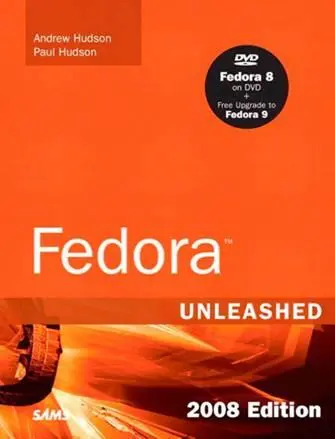
- Название:Fedora™ Unleashed, 2008 edition
- Автор:
- Издательство:Sams Publishing
- Жанр:
- Год:2008
- Город:Indianapolis
- ISBN:978-0-672-32977-7
- Рейтинг книги:5 / 5. Голосов: 1
-
Избранное:Добавить в избранное
- Отзывы:
-
Ваша оценка:
Fedora™ Unleashed, 2008 edition: краткое содержание, описание и аннотация
Предлагаем к чтению аннотацию, описание, краткое содержание или предисловие (зависит от того, что написал сам автор книги «Fedora™ Unleashed, 2008 edition»). Если вы не нашли необходимую информацию о книге — напишите в комментариях, мы постараемся отыскать её.
Finding information you need is not always easy. This short index provides a list of common tasks discussed inside this book. Browse the table of contents or index for detailed listings and consult the specified chapter for in-depth discussions about each subject.
left How Do I…?
See…
How Do I…?
See…
left Back up my system?
Chapter 13
Partition a hard drive?
Appendix B, Chapters 1, 35
left Build a new Linux kernel?
Chapter 36
Play MP3s and other music?
Chapter 7
left Burn a CD?
Chapter 7
Print a file?
Chapter 8
left Change a password?
Chapter 4
Read a text file?
Chapter 4
left Change the date and time?
Chapter 32
Read or send email?
Chapter 21
left Compress a file?
Chapter 13
Read or post to newsgroups?
Chapter 5
left Configure a modem?
Chapter 2
Reboot Fedora?
Chapter 1
left Configure a printer?
Chapter 8
Rescue my system?
Chapter 13
left Configure a scanner?
Chapter 7
Set up a DNS server?
Chapter 23
left Configure a sound card?
Chapter 7
Set up a firewall?
Chapter 14
left Configure my desktop settings?
Chapter 3
Set up a web server?
Chapter 15
left Connect to the Internet?
Chapter 5
Set up an FTP server?
Chapter 20
left Control a network interface?
Chapter 14
Set up Samba with SWAT?
Chapter 19
left Copy files or directories?
Chapters 13, 32
Set up wireless networking?
Chapter 14
left Create a boot disk to boot Fedora?
Chapter 1
Shut down Fedora?
Chapter 1
left Create a database?
Chapter 16
Use a spreadsheet?
Chapter 6
left Create a user?
Chapter 4
Use Instant Messaging?
Chapter 5
left Delete a file or directory?
Chapter 32
Watch television on my computer?
Chapter 7
left Get images from a digital camera?
Chapter 7
Edit a text file?
Chapter 4
left Install Fedora?
Chapter 1
Make Fedora more secure?
Chapter 14
left Log in to Fedora?
Chapter 1
Mount a CD-ROM or hard drive?
Chapter 35
Fedora™ Unleashed, 2008 edition — читать онлайн бесплатно полную книгу (весь текст) целиком
Ниже представлен текст книги, разбитый по страницам. Система сохранения места последней прочитанной страницы, позволяет с удобством читать онлайн бесплатно книгу «Fedora™ Unleashed, 2008 edition», без необходимости каждый раз заново искать на чём Вы остановились. Поставьте закладку, и сможете в любой момент перейти на страницу, на которой закончили чтение.
Интервал:
Закладка:
Preparing db table
Preparing host table
Preparing user table
Preparing func table
Preparing tables_priv table
Preparing columns_priv table
Installing all prepared tables
020916 17:39:05 /usr/libexec/mysqld: Shutdown Complete
...
The command prepares MySQL for use on the system and reports helpful information. The next step is to set the password for the MySQL root user, which is discussed in the following section.
By default, the MySQL root user is created with no password. This is one of the first things you must change because the MySQL root user has access to all aspects of the database. The following section explains how to change the password of the user.
Setting a Password for the MySQL Root User
To set a password for the root MySQL user, you need to connect to the MySQL server as the root MySQL user; you can use the command mysql -u rootto do so. This command connects you to the server with the MySQL client. When you have the MySQL command prompt, issue a command like the following to set a password for the root user:
mysql> SET PASSWORD FOR root = PASSWORD(" secretword ");
secretword should be replaced by whatever you want to be the password for the root user. You can use this same command with other usernames to set or change passwords for other database users.
After you enter a password, you can exit the MySQL client by typing exitat the command prompt.
Creating a Database in MySQL
In MySQL, you create a database by using the CREATE DATABASEstatement. To create a database, you connect to the server by typing mysql -u root -p and pressing Enter. After you do so, you are connected to the database as the MySQL root user and prompted for a password. After you enter the password, you are placed at the MySQL command prompt. Then you use the CREATE DATABASEcommand. For example, the following commands create a database called animals:
# mysql -u root -p
Enter password:
Welcome to the MySQL monitor. Commands end with ; or \g.
Your MySQL connection id is 1 to server version: 3.23.58
Type 'help;' or '\h' for help. Type '\c' to clear the buffer.
mysql> CREATE DATABASE animals;
Query OK, 1 row affected (0.00 sec)
mysql>
Another way to create a database is to use the mysqladmincommand, as the root user, with the createkeyword and the name of a new database. For example, to create a new database named reptiles, you use a command line like this:
# mysqladmin -u root -p create reptiles
Granting and Revoking Privileges in MySQL
You probably want to grant yourself some privileges, and eventually you will probably want to grant privileges to other users. Privileges, also known as rights , are granted and revoked on four levels:
► Global level— These rights allow access to any database on a server.
► Database level— These rights allow access to all tables in a database.
► Table level— These rights allow access to all columns within a table in a database.
► Column level— These rights allow access to a single column within a database's table.
Listing all the available privileges is beyond the scope of this chapter. See the MySQL documentation for more information.
To add a user account, you connect to the database by typing mysql -u root -p and pressing Enter. You are then connected as the root user and prompted for a password. (You did set a password for the root user as instructed in the last section, right?) After you enter the root password, you are placed at the MySQL command prompt.
To grant privileges to a user, you use the GRANTstatement, which has the following syntax:
grant what_to_grant ON where_to_grant TO user_name IDENTIFIED BY ' password ';
The first option, what_to_grant , is the privileges you are granting to the user. These privileges are specified with keywords. For example, the ALLkeyword is used to grant global-, database-, table-, and column-level rights for a specified user.
The second option, where_to_grant , specifies the resources on which the privileges should be granted. The third option, user_name , is the username to which you want to grant the privileges. Finally, the fourth option, password, is a password that should be assigned to this user. If this is an existing user who already has a password and you are modifying permissions, you can omit the IDENTIFIED BY portion of the statement.
For example, to grant all privileges on a database named sampledatato a user named foobar, you could use the following command:
GRANT ALL ON animals.* TO foobar IDENTIFIED BY 'secretword';
The user foobarcan now connect to the database sampledataby using the password secretword, and foobarhas all privileges on the database, including the ability to create and destroy tables. For example, the user foobarcan now log in to the server (by using the current hostname — shuttle2, in this example), and access the database like so:
$ mysql -h shuttle2 -u foobar -p animals
Enter password:
Welcome to the MySQL monitor. Commands end with ; or \g.
Your MySQL connection id is 43 to server version: 3.23.58
Type 'help;' or '\h' for help. Type '\c' to clear the buffer.
mysql>
See the section "The MySQL Command-Line Client" later in this chapter for additional command-line options.
Later, if you need to revoke privileges from foobar, you can use the REVOKEstatement. For example, the following statement revokes all privileges from the user foobar:
REVOKE ALL ON animals FROM foobar;
Advanced database administration, privileges, and security are very complex topics that are beyond the scope of this book. See the "Reference" section at the end of this chapter for links to online documentation. You can also check out Luke Welling's and Laura Thompson's book PHP and MySQL Development from Sams Publishing.
Configuring PostgreSQL
If you do not want to use the version of PostgreSQL bundled with Fedora, the latest PostgreSQL binary files and source are available at http://www.postgresql.org/. The PostgreSQL RPMs are distributed as several files. At a minimum, you probably want the postgresql, postgresql-server, and postgresql-libsRPMs. You should see the README.rpm-distfile in the FTP directory ftp://ftp.postgresql.org/pub/ to determine whether you need any other packages.
If you are installing from the Fedora RPM files, a necessary postgresuser account (that is, an account with the name of the user running the server on your system) is created for you automatically:
$ fgrep postgres /etc/passwd
Интервал:
Закладка:
Похожие книги на «Fedora™ Unleashed, 2008 edition»
Представляем Вашему вниманию похожие книги на «Fedora™ Unleashed, 2008 edition» списком для выбора. Мы отобрали схожую по названию и смыслу литературу в надежде предоставить читателям больше вариантов отыскать новые, интересные, ещё непрочитанные произведения.




![Andrew Radford - Linguistics An Introduction [Second Edition]](/books/397851/andrew-radford-linguistics-an-introduction-second-thumb.webp)







Обсуждение, отзывы о книге «Fedora™ Unleashed, 2008 edition» и просто собственные мнения читателей. Оставьте ваши комментарии, напишите, что Вы думаете о произведении, его смысле или главных героях. Укажите что конкретно понравилось, а что нет, и почему Вы так считаете.